
If you want to know how to add skip logic in Google Forms, the short answer is this: split your form into sections, turn on section navigation, then use the three-dot menu on a Multiple Choice or Dropdown question and pick Go to section based on answer. Each answer option can then point to a specific section or end the form early. The whole setup takes about ten minutes once the sections exist.
Skip logic matters because it decides which questions a respondent actually sees. Without it, a screening survey asks a non-student about tuition fees and a part-time student about full-time course load, and both answers end up in the same spreadsheet column full of noise. Branching fixes that at the source, and it makes your response data cleaner before you open SPSS or R.
Here is the short version, if you want the mechanism in one breath: add sections, turn on section navigation in Settings, open the three-dot menu on a routing question, choose Go to section based on answer, assign a destination to every single option, preview each path. Everything below is those six moves with the exact menu labels and a worked example.
Table of Contents
- 1What You Need
- 2Step-by-Step: How to Add Skip Logic in Google Forms
- 31. Turn on section navigation in Google Forms
- 42. Add the questions and answer choices that control the route
- 53. Set the destination for each answer
- 64. Use page breaks and skip logic for a simpler conditional question
- 75. Test the form before you share it
- 8Common Mistakes
- 9You are looking in the wrong menu
- 10You left an answer option unmapped
- 11Both questions sit in the same section
- 12The answer choices overlap
- 13You forgot that skipped sections still appear in the export
- 14You expected AND logic
- 15Frequently Asked Questions
- 16Can I add skip logic to a Google Form without sections?
- 17What is the difference between section navigation and page breaks in Google Forms?
- 18How do I send someone to a specific page based on their answer?
- 19Can skip logic make questions optional or hide one question automatically?
- 20Why is my Google Forms skip logic not working?
- 21Can respondents see the skip logic or the answers that control navigation?
- 22Conclusion
What You Need
Google Forms handles branching at the section level, not the individual question level. So the prerequisites are shorter than you would think, but they are not optional.
- A Google account with edit access to the form. Viewers cannot change navigation settings.
- A form already split into sections. There is no branching option in the interface until at least one section exists.
- One clear routing question with fixed answer options, such as a screening item like student status or eligibility.
- A plan for every section, including which one is the fallback when an answer does not match a branch.
If your form is a single long page with no sections, you are about twenty minutes of work away from having one. That is fine. Add the sections first, set the logic second.
Step-by-Step: How to Add Skip Logic in Google Forms
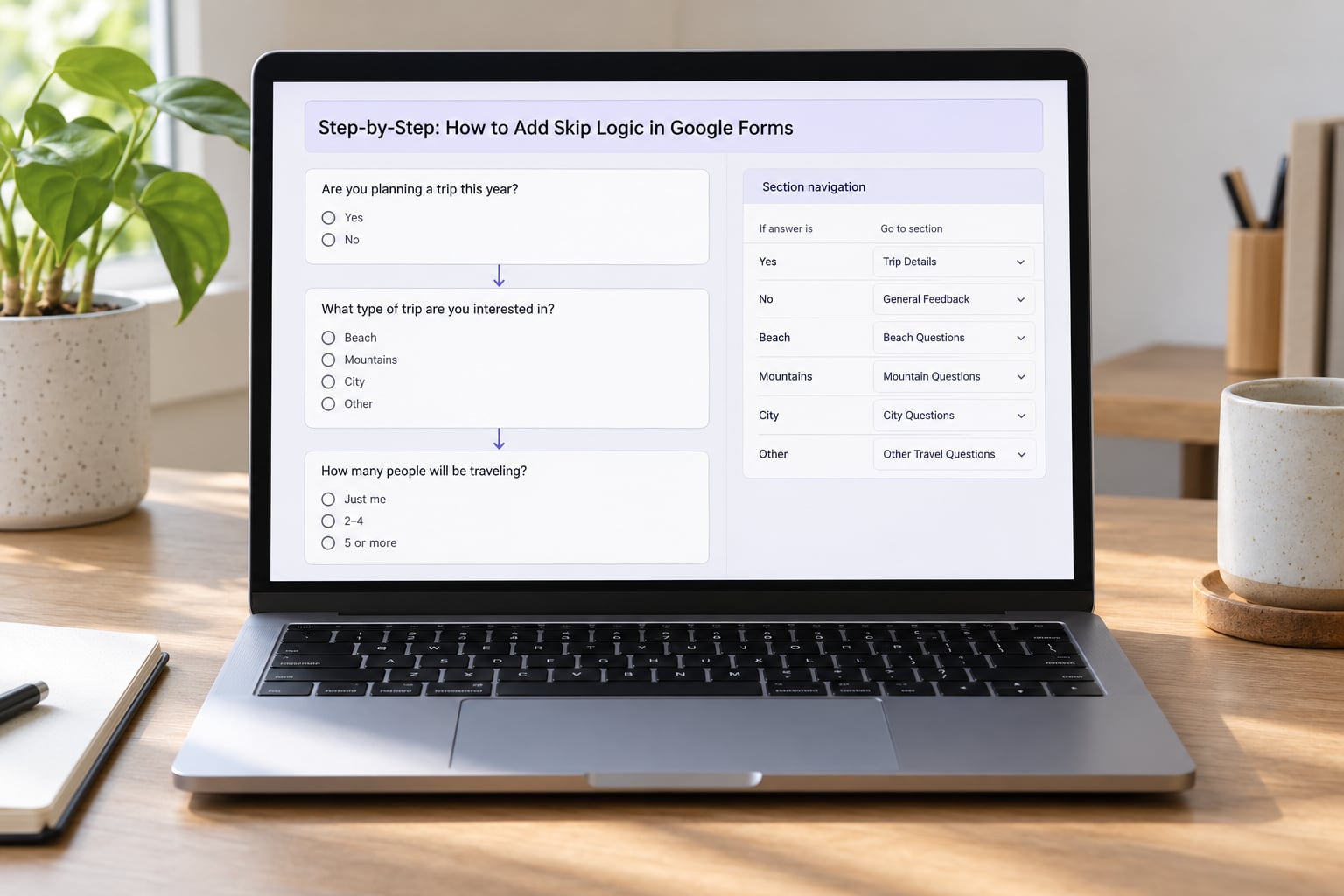
1. Turn on section navigation in Google Forms
Open the form in edit mode, click the Settings tab at the top, and scroll to the Presentations section. Tick Show section navigation. This adds the previous and next controls and makes the form advance one section at a time, which is what makes a jump possible.
You will tell the difference straight away. Without the toggle, sections behave like plain page breaks and Google Forms always moves forward sequentially. With it on, a routing rule can send someone forward, backward, or straight to the end. You can tell it worked when the preview shows section labels like Section 1 of 4 in the navigation bar.
If your form has no sections yet, click the three-dot menu at the end of any question, choose Add section, and give it a name. Name sections by purpose, not by number, if you can. Non-student follow-up tells you more in the response sheet than Section 3 does.
2. Add the questions and answer choices that control the route
Only two question types can trigger a jump: Multiple choice and Drop-down. Everything else, including short answer, checkboxes, and grids, has no routing option at all. If you need an open-text answer to drive logic, you need an add-on or a different tool.
Write the answer options so each one maps to a different path. Avoid vague choices and avoid two options that lead to the same place. Here is a routing question that works, formatted as you would type it:
- Are you currently enrolled as a full-time student? (Yes, go to the academic section. No, go to the community section. Prefer not to say, go to the demographics section.)
Multiple choice shows every option on screen, which makes the branch visible to the respondent and keeps your completion rate high. Drop-down takes less room and works better on a phone, but people are more likely to click through without reading. For routing questions, multiple choice is usually the safer pick.
3. Set the destination for each answer
This is the step people miss. Click the three-dot menu on the routing question, choose Go to section based on answer, and a new Jump to section menu appears under each answer option.
Use that dropdown to send an option to a specific section, to Restart in this section if someone needs to redo a block, or to End of form to finish early. Ending the form early is the cleanest way to stop screening questions after an ineligible answer.
Now the part that catches everybody: every option needs a destination, including the last one. Google Forms will not warn you about an unmapped option, and an unmapped option simply falls through to the next section in order. That silent behaviour is the number one reason branching appears to half-work.
A worked example, using the student status question:
- Yes, full-time student, sends them to Section 2: Your course load.
- No, part-time or not enrolled, sends them to Section 4: Why you took the survey.
- Prefer not to say, sends them to End of form, since the course load question makes no sense without an answer.
Nothing stops you pointing two answers at the same section, so if your data only cares about the difference between a handful of profiles, two branches landing in the same place is just noise. Merge those options into one unless the split matters for your analysis.
4. Use page breaks and skip logic for a simpler conditional question
Sometimes you need to hide a single question, not a whole block. Section branching is clumsy for that, because everything in the section travels together. Two options work better.
First, keep the section small: put the one conditional question in its own section, so a jump skips exactly that question and nothing else. Second, if you do not want the respondent to see the screen at all, use response validation on the question instead. Requiring a specific answer, or adding a regex pattern for the text version, filters data without any navigation at all.
For a single conditional multiple choice question, the practical rule is: if the question has more than three or four related items around it, put those in a section. If it stands alone, leave it on the page and validate the answer.
5. Test the form before you share it
Click the eye icon in the toolbar to open preview, and walk every path by hand. My checklist, after the thirty-second version has failed me:
- Preview each routing answer in turn and confirm it lands on the section you mapped.
- Check the fallback path by leaving the routing question unanswered, if it is not required. Make sure you land somewhere sensible.
- Confirm no section is left with a required question the respondent cannot reach, since required questions in an unreachable section cause a stall.
- Test on a phone. Section jumps behave the same way, but long option lists and wide grids do not.
- Send the preview link to one colleague before the live link goes out.
Google Forms saves automatically, so there is no save button to forget. What people mean when they say changes did not save is that they were still looking at the published link rather than the editor.
Common Mistakes
You are looking in the wrong menu
The option is not in the Settings tab and not in the Responses tab. It sits in the three-dot menu on the individual question, and it only appears on Multiple Choice and Dropdown questions.
You left an answer option unmapped
Google Forms shows a Jump to section control for some options and quietly skips it for others. Look at every option one by one, including any you added later by typing Option 4 yourself.
Both questions sit in the same section
A jump sends the respondent to the start of a section. If you have set up how to add skip logic in Google Forms and nothing is being skipped, this is almost always why: the routing question and the questions you want to skip are in the same section. Sections are the unit of travel, not questions.
The answer choices overlap
Options like Yes and No, but I work part time will send people down overlapping paths and pollute your data. Keep each option mutually exclusive and phrase it in the respondent’s own words.
You forgot that skipped sections still appear in the export
This one surprises everybody. When responses go to Google Sheets, the columns for skipped sections exist for every respondent and are simply empty for the people who were routed elsewhere. Filter on the routing column before you calculate anything, or your percentages will be based on the wrong denominator.
You expected AND logic
Google Forms routes on one answer to one question. There is no way to say if answer to Q2 is yes AND answer to Q5 is above 60, go to Section 6. Multi-condition rules need a dedicated builder or an add-on, and pretending otherwise leads people to build forms that quietly send everyone to the same place.
Frequently Asked Questions
Can I add skip logic to a Google Form without sections?
No. Google Forms branching works only at the section level, so the Go to section based on answer option does not appear until the form has at least one section. Add one from the three-dot menu at the end of any question, then turn on Show section navigation under Settings, Presentations, and the routing option becomes available.
What is the difference between section navigation and page breaks in Google Forms?
A page break simply moves the respondent to the next screen in fixed order. Section navigation adds labels and previous and next controls, and it is what allows a routing rule to send someone to a different section or to the end of the form. Without section navigation enabled, sections behave like ordinary page breaks and jumps cannot happen.
How do I send someone to a specific page based on their answer?
Open the three-dot menu on a Multiple Choice or Dropdown question and choose Go to section based on answer. A Jump to section dropdown then appears beside every answer option, letting you point it to a named section, restart in that section, or end the form. Assign a destination to every option, including the last one, or unmapped options fall through in order.
Can skip logic make questions optional or hide one question automatically?
Skip logic routes respondents between sections, it does not hide a single question inside a page. If you need one question to disappear, put it alone in its own section so the jump skips that whole block. For a screening question on a shared page, response validation is the better tool, since it rejects an answer rather than routing the respondent.
Why is my Google Forms skip logic not working?
The usual causes are four. The routing question is not a Multiple Choice or Dropdown, so the option never appeared. Show section navigation is off in Settings, so jumps fall back to sequential order. Some answer option has no destination assigned, so it moves forward by default. Or the questions you wanted skipped sit in the same section as the routing question.
Can respondents see the skip logic or the answers that control navigation?
Respondents see the routing question and its answer options, and the section navigation bar shows how many sections the form has. They do not see the routing rules themselves, and they cannot jump to a section they were not sent to. If a question is only there to fire off a branch, keep it worded as a genuine question so it does not read like a mechanism.
Conclusion
Start by splitting your form into sections, one per block of questions a respondent with the same profile will see. Turn on Show section navigation, then map a destination for every option on your routing question, including the ones you think will never be chosen.
Preview each path once before the form goes live, and remember that skipped sections still occupy columns in the response sheet. That is the whole process for how to add skip logic in Google Forms. If you need AND conditions, scoring, or question-level hiding, you have outgrown the built-in tool, and a dedicated form builder is the honest next step.