A do-file is a plain text file with a .do extension that holds a list of Stata commands, which you run as one script instead of typing them into the Command window. Learning how to use do files in Stata for reproducible analysis comes down to three habits: keep every file inside one project folder, build file paths from that folder rather than from your user directory, and never run a script against data you loaded by hand. Set that up once and rebuilding last month’s results becomes a single command.
The rule that makes it work is short enough to write on a sticky note. If you run the same do-file twice, you should get the same results. Everything below is in service of that.
Table of Contents
- 1What You Need
- 2Step-by-Step: How to Use Do Files in Stata for Reproducible Analysis
- 3Create a Project Folder Structure
- 4Write and Save the Do File
- 5Run the Do File in a Fresh Stata Session
- 6Use Relative Paths So the Project Can Move
- 7Capture a Log and Saved Outputs
- 8Test Reproducibility From Scratch
- 9Put the Do File Under Version Control
- 10Common Mistakes
- 11Quick Reproducibility Checklist
- 12Frequently Asked Questions
- 13What is a do file in Stata?
- 14How do I run a do file in Stata?
- 15Why does my Stata do file stop working when I move the folder?
- 16Should I use a relative path in a Stata do file?
- 17How do I stop a Stata do file when something goes wrong?
- 18Conclusion
What You Need
Nothing exotic. You need Stata itself, a text editor, and one dataset you trust. The editor can be the Do-file Editor built into Stata, which is what I use because it keeps the script and the Results window in the same place, or a plain text editor such as a generic code editor if you prefer to write outside Stata.
The rest of the prerequisites are organisational rather than technical:
- Stata with a licensed or student copy you can run the script on.
- A raw or imported dataset in a folder you control, plus the code that produced it.
- One project folder on a drive that does not change between runs.
- A do-file with a clear name, something like
01_clean.dooranalysis_main.dorather thanUntitled.do. - Two minutes to prove the script runs from a fresh session before you rely on it.
That last item is the one people skip. A do-file that only works in the session where you built it is not a script yet, it is a memory aid.
Step-by-Step: How to Use Do Files in Stata for Reproducible Analysis
Create a Project Folder Structure

Reproducible analysis starts before Stata opens. Put everything for one piece of work inside a single folder, and split that folder by stage of the analysis rather than by file type. A structure that has survived every rewrite I have seen looks like this:
thesis_project/
    project.do        <- master file, runs everything in order
    raw/              <- original data, never edited
    derived/          <- cleaned and merged datasets
    do/               <- individual do-files
    logs/             <- one log per run
    output/           <- tables, figures, saved estimates
    tmp/              <- scratch files, safe to delete
The rule that makes this worth doing is the first one: nothing in raw/ is ever edited. If a value needs fixing, fix it in code and write a new file to derived/. That way you always know which version of the data produced which table.
The other rule is about paths. Absolute paths such as C:/Users/jsmith/Desktop/thesis/raw/data.dta work on exactly one computer, for exactly one user, and break the moment you share the project with a co-author or move to a laptop. Build paths from the project folder instead, and the whole thing travels.
Write and Save the Do File
Open the Do-file Editor with the toolbar button in the Stata window, or through File > New > Do-file depending on your version and operating system. In Stata 17 and later the editor has its own window with Run and Do controls along the top; earlier builds tend to open it in a pane inside the main window, and the Results window behaves a little differently in each. The script itself is identical.
Now write a file that can rebuild your analysis from nothing. Here is a complete, runnable example:
// ============================================================
// Project : Wage premium and firm size
// Author  : A. Researcher
// Created : 2026
// Purpose : clean raw data, build analysis file, estimate model
// Run with: do project.do
// ============================================================

version 18
clear all
set more off
set seed 20261003          <- makes random commands repeatable

capture log close           <- close any log left open by a failed run
log using "logs/analysis.log", text replace

// ---- 1. Project location ------------------------------------
// Edit this one line when the project moves. Everything else
// below is relative to it.
global root "~/Desktop/thesis_project"
cd "$root"

// ---- 2. Data ------------------------------------------------
import delimited using "raw/survey_raw.csv", clear varnames(1)
describe
assert !missing(id)
duplicates report id

// ---- 3. Clean ------------------------------------------------
rename firm_size_q firm_size
encode region, gen(region_num)
label variable firm_size "Firm size quartile"

// ---- 4. Save the analysis file ------------------------------
save "derived/analysis.dta", replace

// ---- 5. Analysis ---------------------------------------------
use "derived/analysis.dta", clear
reg wage i.region_num c.firm_size, vce(cluster id)
estimates store main

// ---- 6. Outputs ----------------------------------------------
estimates table main, b(%9.3f) se(%9.3f) > "output/main_table.txt"
graph twoway (scatter wage firm_size), name(scat) > "output/scatter.gph"

log close
Six things in that file do the heavy lifting. version pins the syntax to a Stata release so results do not shift when a new version changes a default. clear all wipes any data left in memory, so the script never inherits something you loaded by hand. capture log close before log using stops a stale log from swallowing the new one. The header comments say who wrote it and why. The assert fails loudly if the raw file is missing an identifier. And the analysis reads from derived/, never from what is in memory.
Save it with File > Save As into do/, keeping the .do extension. If you save it as plain text by mistake, Stata will not recognise it as a script.
Run the Do File in a Fresh Stata Session
There are three ways to run a do-file in Stata, and they behave differently in one important respect: what happens to your working directory.
- The Run button in the Do-file Editor. Opens and runs the file in the editor. Convenient while you are writing.
- The do command. Type
do "do/analysis.do"in the Command window. This is the repeatable version, and it is what your master file uses. - Command-line batch execution. From a terminal, run
stata -b do project.do. On macOS and Linux the executable name is lowercasestata; on Windows it is usuallyStataMP-64or similar. This is how people run a script overnight or on a cluster.
Run it interactively while developing. The editor highlights the line that failed, so errors are much easier to read than in batch mode.
Stata changes the working directory to the folder holding the do-file while that file runs. That single behaviour explains most of the file-not-found errors people hit, and it is why a file that ran fine from the editor can fail when you call it from the Command window in a different folder.
Use Relative Paths So the Project Can Move
A relative path is written from the current working directory rather than from a drive root, so it survives being moved or copied. In the example above, "raw/survey_raw.csv" means the raw folder sitting next to where Stata currently is. Only one line, the global root, contains an absolute path, and you edit it once per machine.
Two patterns work well. Either set the root and change into it, as above:
global root "~/Desktop/thesis_project"
cd "$root"
import delimited using "raw/survey_raw.csv", clear
Or, if you prefer no absolute path at all, drop the do file in the project root and reference everything else from there. The cost is that the do-file must sit at a predictable location.
When a path fails, the debugging command is c(pwd). Put it at the top of the script and look at the Results window:
display "Working folder is: `c(pwd)'"
display "Project root is: $root"
If the printed folder is not the project root, you have found the problem. On macOS, ~ expands to your home folder; on Windows, write the path out fully, for example "C:/Users/yourname/Documents/thesis_project" with forward slashes. Stata accepts forward slashes on Windows, and mixing them with backslashes is a reliable way to produce a cryptic error.
Capture a Log and Saved Outputs
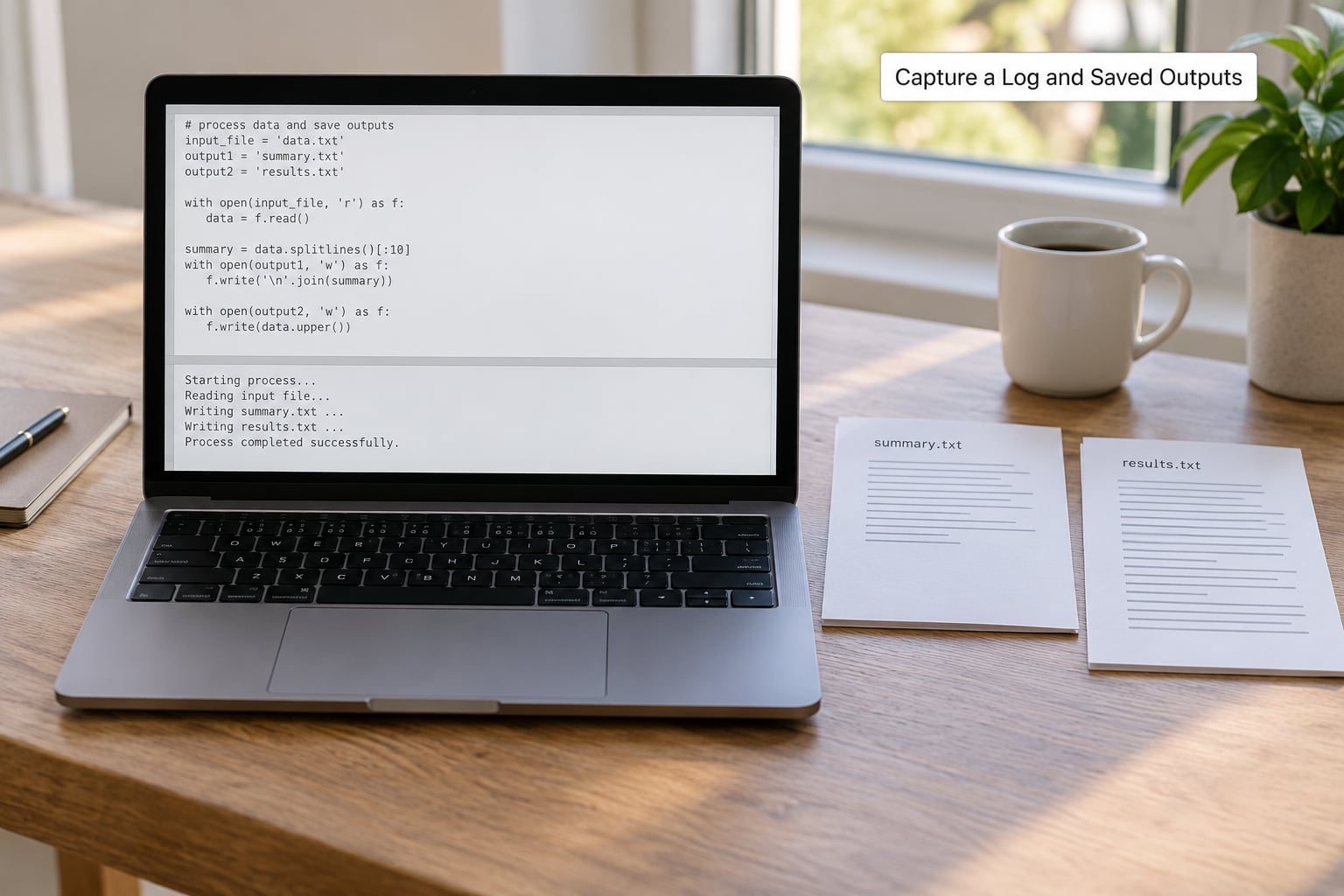
A log is a plain text record of everything Stata printed while the script ran, including errors and the values of the commands you echoed. It is your audit trail. Open it as the first substantive line of the file, not halfway down:
clear all
set more off
capture log close
log using "logs/analysis.log", text replace

// ... all of your work goes here ...

log close
The order matters. capture log close tries to close a log and carries on quietly if none is open. Without it, a failed run can leave a log open, and the next run’s log using will either refuse to start or append to the old file instead of replacing it. Add , replace as well so each run starts a clean file rather than an ever-growing one.
Saving outputs matters for the same reason. A table that only exists in the Results window is gone when Stata closes. Write it to disk instead, with the greater-than sign and a quoted path:
estimates table main, b(%9.3f) > "output/main_table.txt"

ssc install estout
esttab using "output/main_table.rtf", replace se star

graph twoway (scatter wage firm_size), name(scat) > "output/scatter.gph"
To check the files actually landed where you expected, list the output folder from the Command window after the run, or check the file timestamps. A script that says graph save but writes to the wrong folder will not complain.
Test Reproducibility From Scratch
This is the step that converts a script into a reproducible one. Close Stata completely, reopen it, and run the whole file from the beginning without touching anything else.
do "~/Desktop/thesis_project/project.do"
Then compare what you get with what you had. Check three things: the main estimates match, the output files exist with fresh timestamps, and the log shows the run from clear all rather than continuing from previous state. If the numbers differ, the difference is almost always data that was in memory, a random draw without a fixed seed, or commands that depended on a sort order you did not set.
Add set seed near the top if you use anything random, and add sort before any command where order matters. Repeat the test twice on your machine. If the second run matches the first, you have a reproducible analysis.
Put the Do File Under Version Control
A do-file is a text file, which makes it a good citizen of any version control system. Git is the common choice, and it costs ten minutes to set up:
cd ~/Desktop/thesis_project
git init
Create a .gitignore that keeps your code but not your data and your bulk outputs:
# data are not in the repository
raw/
derived/

# logs and figures can be regenerated
logs/
output/
tmp/

# keep the scripts
!do/
!project.do
Then commit after each working change, with a message that says what the change did:
git add do/
git commit -m "add wage premium model with clustered SEs"
Small, meaningful commits are the point. A commit per completed analysis step means you can find the commit that introduced a wrong recode, and you can roll back to the last good state without touching the data. Do not commit restricted or confidential datasets, and do not commit large .dta or output files; keep those on disk or in secure storage and let the code rebuild them.
Co-authors work the same way. Each person clones the repository, edits only the do-files, and commits. The data folder stays local to each machine, which is exactly why the code must never assume a particular path.
Common Mistakes
The log is still open. A previous run stopped at an error, leaving the log open, so the next run fails to start one. Put capture log close immediately before every log using.
File not found, even though the file is there. Almost always a working directory mismatch between the Do-file Editor and the Command window. Print c(pwd) at the top of the script and compare it with where you think you are.
The script worked until you moved the project. You have a hard-coded absolute path. Replace it with a global root plus relative paths from there.
Commands ran in the wrong order, or a later command quietly did nothing. The do-file depends on something you had loaded in memory by hand. Start with clear all and a use or import statement so the file stands alone.
Output vanished between runs. The file was written to the wrong folder, or an earlier command redirected it. Close the log at the end of the script, then open the output folder in your file browser and check that the files inside carry fresh timestamps.
A variable is missing partway through. An earlier step silently dropped rows or an assert should have failed. Add assert after each step that can change the number of observations, such as a merge or a filter, so the run stops where the problem starts.
Results differ from run to run. Check for a missing set seed, a missing sort, or any step that depends on the order rows happened to arrive in.
Quick Reproducibility Checklist
Run through this before you rerun anything, and again before you send work to a supervisor or a journal:
- Raw data sits untouched in
raw/and is never edited by hand. - Every path is relative, built from one
global rootyou edit once per machine. - The do-file starts with
version,clear allandset more off. capture log closecomes beforelog using.set seedis set if anything random is used.- Any SSC packages the script needs are installed inside the script with
ssc install, not assumed to be there. - Tables and figures are saved to
output/, not left in the Results window. - Assertions guard the steps that can silently change row counts.
- Scripts are committed to version control; data is not.
- The full file runs from a fresh Stata session and produces the same numbers twice.
Frequently Asked Questions
What is a do file in Stata?
A Stata do-file is a plain-text file with a .do extension containing Stata commands, comments, and often control statements such as version, clear all, log, or assert. Stata reads it line by line and executes each command in order, so the file performs the same analysis every time you run it instead of depending on what is loaded in memory.
How do I run a do file in Stata?
Open the do-file in the Do-file Editor and press the Run button, or type do followed by the path, for example do “do/analysis.do”, in the Command window. For repeatable execution, start the script with clear all, open a log with log using, run every step from the beginning, and close the log at the end.
Why does my Stata do file stop working when I move the folder?
The usual cause is a hard-coded absolute path pointing at the old computer, drive, or user folder. Replace it with a project-root global, for example global root “~/Desktop/project”, change into it with cd, and build every data, log, and output path from that location. Then the project can be copied anywhere.
Should I use a relative path in a Stata do file?
Yes, when your project folders have a consistent structure. A relative path avoids tying the analysis to one machine or drive, which matters when you share code with co-authors or submit a replication package. The starting folder must still be predictable, so define the project root once at the top and cd into it.
How do I stop a Stata do file when something goes wrong?
Use an assert to test a fact you expect to hold, such as assert !missing(id), which stops the entire run when it fails. Put a display line before each assert naming the step, so the log tells you where it stopped. For conditions you cannot express as an assertion, check explicitly and exit 199 if the check fails.
Conclusion
Start with one folder and one documented do-file today, then prove it by closing Stata and running the whole thing again from scratch. If the numbers match twice, you have a reproducible analysis, and every later change to it will be a change you can see, trace, and undo.