
Yes, you can randomize questions in Qualtrics. Go to the Survey tab, click the block containing your questions, open the Edit block menu, choose Question randomization, and pick an option such as Randomize the order of all questions or Present only N of total questions. Save the block and the new order is drawn fresh for every respondent. Most surveys take about ten minutes to set up.
The catch is that randomization works on blocks, not on loose questions. Qualtrics gives you three separate tools that people constantly mix up: block-level question randomization, the Randomizer element in Survey Flow for whole blocks or mixed flow elements, and Choice Randomization for answer options inside a single question. Pick the wrong one and you get a survey that looks random but isn’t.
This guide walks through all three, plus the settings that quietly override your page breaks, how to verify that randomization actually fired, and the one thing Qualtrics genuinely cannot do.
Table of Contents
- 1What You Need
- 2How to Randomize Questions in Qualtrics Step by Step
- 3How to randomize questions in Qualtrics using blocks
- 4How to randomize questions in Qualtrics with display logic
- 5How to test the randomized survey
- 6Which randomization method should you use?
- 7The four randomization options inside a block
- 8Advanced randomization: fixed display order, random subset and excluded items
- 9How to randomize a subset of questions while keeping sub-questions in order
- 10Randomizing answer choices with Choice Randomization
- 11Evenly Present Elements and Edit Counts
- 12Why page breaks and questions-per-page stop working after you randomize
- 13How to check randomization worked and export the viewing order
- 14Common mistakes when you randomize questions in Qualtrics
- 15Frequently Asked Questions
- 16Can you randomize questions in Qualtrics?
- 17What does it mean for a question to be randomized?
- 18Why are my page breaks ignored after I randomize questions?
- 19What does Evenly Present Elements mean in Qualtrics?
- 20How do I renumber Qualtrics questions after randomizing?
- 21How do I do conditional questions in Qualtrics?
What You Need

You need edit access to the survey, which means an owner or editor account rather than a preview-only seat. If the survey is live, changing question order affects respondents who start it after the change, so it is worth doing this before you field it rather than mid-collection.
Before you touch any settings, look at how your questions are currently grouped. Question randomization applies to an entire block, so the block boundaries decide what can be shuffled. A survey with one giant block containing consent text, demographic items and your main battery can only be randomized as one lump.
It also helps to know which Qualtrics survey platform you are on. The menu labels below match the current Qualtrics XM survey editor, where blocks live in Survey Flow and each block has its own option menu. Older support tickets on community.qualtrics.com often describe a different layout, so if you cannot find Question randomization in the block menu, your survey may have been built on the legacy platform.
Finally, take stock of your logic before you randomize anything: skip logic, display logic, carry-forward and any timed element. Randomization changes which questions a respondent sees next, and anything that assumed a fixed order will need re-checking afterward.
How to Randomize Questions in Qualtrics Step by Step
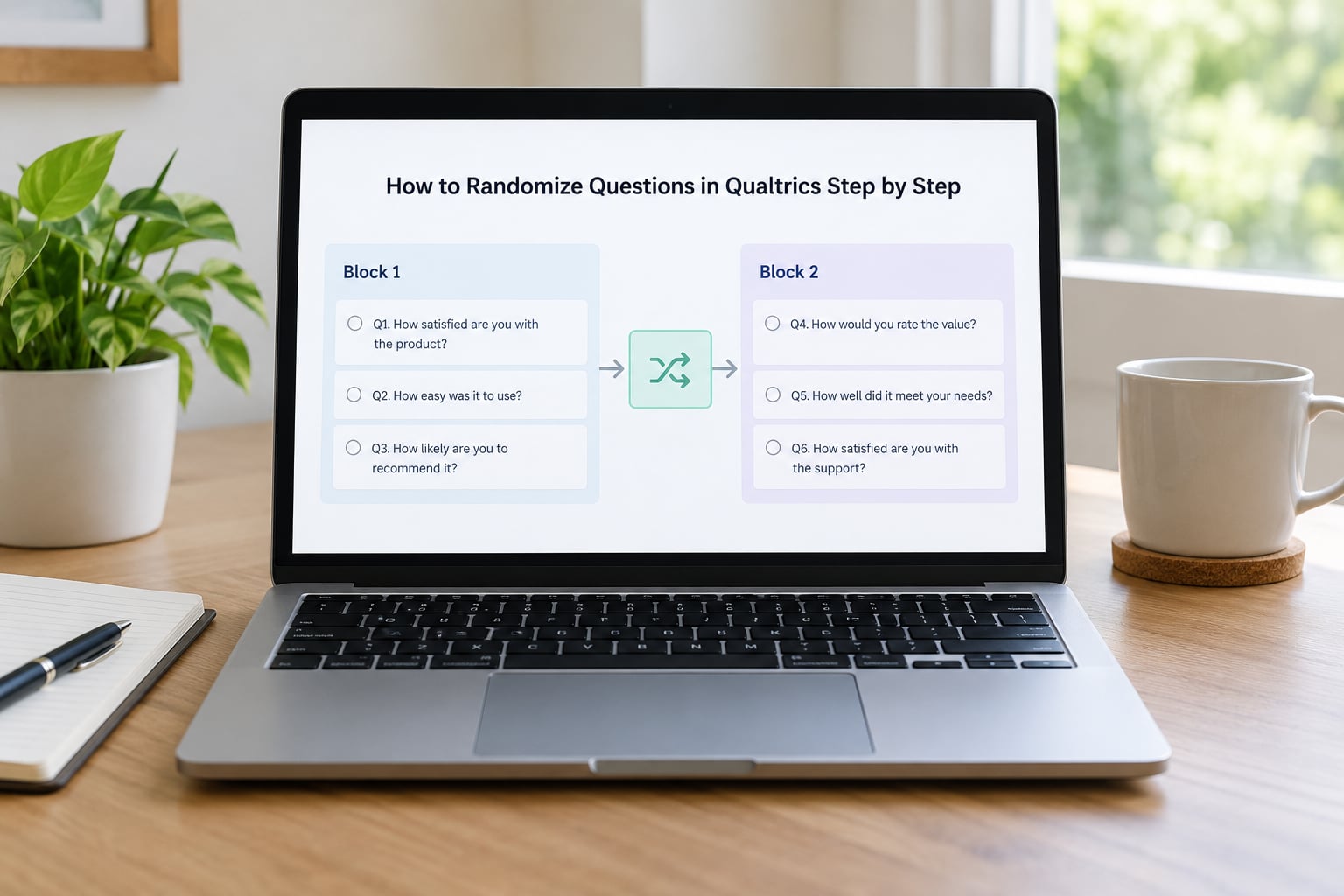
Here is the core procedure for shuffling every question inside one block.
- Open your survey and go to the Survey tab.
- In the left panel, find the block you want to shuffle and click its name to open it.
- Click the block’s Options or gear icon at the top right of the block, then choose Edit block. Some versions show the option under a three-dot menu instead.
- Select Question randomization.
- Pick an option: No randomization, Randomize the order of all questions, Present only N of total questions, or Advanced randomization.
- Set any count. If you choose Present only N of total, enter how many questions each respondent should see.
- Click Save. Qualtrics confirms the change and the block icon in Survey Flow reflects the new setting.
- Preview the survey several times and confirm the order changes between previews.
That is the whole mechanism. Everything else on this page is about choosing the right option, and about what breaks afterward.
How to randomize questions in Qualtrics using blocks
Block randomization is the right choice when a group of questions can appear in any order but every respondent must see all of them. A battery of ten satisfaction items, for instance, can be shuffled so that item 7 is not always buried in the middle, which reduces fatigue and primacy effects without changing what anyone is asked.
Keep each block focused on one topic. Because the block is the randomization unit, putting your entire instrument into one block means consent, demographics and the main battery all shuffle together, which is almost never what you want.
Two related settings live next to question randomization and are worth knowing. Questions per page and page breaks interact badly with shuffling, which I cover in its own section below.
How to randomize questions in Qualtrics with display logic
Display logic is not randomization, and mixing the two up is the most common confusion on this topic. Display logic makes a question appear only when a condition is met, such as showing a follow-up only to respondents who selected a particular option. The order of those conditional questions is still fixed.
The pattern people actually want is conditional presentation plus a shuffled order: put each conditional question in its own block, attach the display logic to the block, then nest those blocks under a Randomizer in Survey Flow. Respondents who meet the condition see their blocks in a random order; respondents who do not meet it skip them entirely.
For conditional questions themselves, open the question, go to the Logic tab and set a display condition. That path is separate from randomization and stays fixed regardless of how the block is shuffled.
How to test the randomized survey
Preview does not fully exercise randomization, because a single preview can show one random draw and nothing else. Run the preview at least five times and watch for a different order each time; if the order is identical every run, your change did not save or the block has randomization set to No randomization.
Then check that logic still works. Answer the survey properly rather than clicking through, and confirm that skip logic, carry-forward and display conditions all still route respondents correctly. Publish to a test link first if the survey carries real stakes.
Which randomization method should you use?
Three features do three different jobs, and picking the wrong one wastes an afternoon. This is the comparison the official docs do not put in one place.
| Method | What it randomizes | Best for | Main limitation |
|---|---|---|---|
| Block question randomization | Question order inside one block | Batteries and item pools where everyone sees everything, in any order | Cannot shuffle a subset of questions while leaving the rest fixed |
| Randomizer element (Survey Flow) | Any flow elements placed under it, including blocks, embedded data and end-of-survey elements | Counterbalancing block order, randomly assigning conditions, showing a random subset of blocks | Requires restructuring Survey Flow, which can affect page breaks |
| Choice Randomization | The answer options inside one question | Reducing position bias in scale order or list options | Does nothing to question order; fixed anchors such as “None of the above” need care |
If you need to expose a different version of a list to different people, such as showing one respondent list 1 and another respondent list 2, the Randomizer element with two blocks is the tool. If you need nine random items from each of two different pools, you need two separate Randomizers, one per pool, because a single Randomizer draws from whatever sits under it.
The four randomization options inside a block
These are the choices in the Question randomization dialog, and they behave differently enough that it pays to know each one.
No randomization keeps the order exactly as authored. Use it for consent, instructions and screening questions, where order is fixed for a reason.
Randomize the order of all questions shuffles every question in the block independently. It suits flat batteries with no dependencies.
Present only N of total questions draws a fixed number at random from the block, which is how you sample items from a large pool without giving every respondent the whole set.
Advanced randomization opens a more detailed dialog where you can pin questions to fixed positions, exclude items, and combine a random subset with a random order.
One thing to keep in mind: randomization at the block level reshuffles the questions themselves. It does not touch answer choices within a question, which is what Choice Randomization is for.
Advanced randomization: fixed display order, random subset and excluded items
Advanced randomization is where most research designs actually live. It gives you three controls that combine.
Fixed display order pins chosen questions to specific positions, such as first and last, so they always bookend the randomized middle. Showing a manipulation check first and a demographics page last is the standard use.
Random questions shuffles the questions you did not pin. Pin the ones you care about and the rest move around them.
Random subset selects a number of items at random from the block. Excluded items removes specific questions from the draw entirely, useful for screening items you do not want counted toward your randomized set.
A typical design pins one intro question, excludes two screening items, and presents 12 of 18 items at random. That combination is not available from the simple dropdown, which is why Advanced is worth the extra clicks.
How to randomize a subset of questions while keeping sub-questions in order
This is the most-asked question on the Qualtrics community forum, and the honest answer is that Qualtrics cannot do it inside a single block. If you want Q1, Q2 and Q3 shuffled while the a, b and c sub-items under each one stay in a fixed order, there is no setting for it. The randomization unit is the block, so the structure has to change.
The workaround is to split the block.
- Move each sub-item group into its own block: Block 1 holds Q1a, Q1b, Q1c; Block 2 holds Q2a, Q2b, Q2c; and so on.
- Keep the order inside each block exactly as you want it seen. Sub-items are never shuffled now.
- Put all of those blocks under a single Randomizer in Survey Flow.
- Set the Randomizer to present every block it contains.
- Preview repeatedly to confirm the block order varies while the sub-items inside each block never move.
It is more clicking than one setting, but it is the only structure that gives you shuffled parents with fixed children. The same split solves the related case of pulling a fixed number of items from each of two pools: two Randomizers, each covering its own pool of blocks.
Randomizing answer choices with Choice Randomization
Choice Randomization changes the order of the options inside a question, which is a different problem from question order. It matters when you want to stop the first option in a list from collecting a disproportionate share of picks.
Open the question, go to the Choices tab and turn on Choice randomization. The simple setting shuffles the options. Choose Advanced Randomization instead and you can fix specific options to the top or bottom while shuffling the rest, which is what you want for anchors like “Prefer not to say” or “None of the above”.
Two cautions. Do not randomize choices in a question where the option order carries meaning, such as a numbered scale from 1 to 10 or an ordered list of income bands. And check any carry-forward or display logic that references a choice by position rather than by value, because shuffling changes positions.
Evenly Present Elements and Edit Counts
Evenly Present Elements tells Qualtrics to distribute the randomized conditions as evenly as it can across respondents, rather than leaving the allocation to pure chance. With it off, a fourth condition added after 15 responses might draw 9 respondents while the original three draw 2 each.
Turn it on whenever you are randomly assigning respondents to experimental conditions and your design assumes roughly equal group sizes. It does not overwrite the underlying list; it just adjusts which respondent lands in which condition as new responses come in.
The Edit Counts control lets you correct that balance manually after the fact, and you can restore the original counts or reset all counts. One practical warning: the counts update only when you save and close the Randomizer, so edits you make and abandon without saving do not stick.
Why page breaks and questions-per-page stop working after you randomize
When you turn on question randomization, Qualtrics inserts its own page structure based on the new sequence. Your hand-placed page breaks and your questions-per-page setting no longer describe what the respondent sees, because the block no longer flows in the order those settings assumed.
Three fixes, in the order I would try them.
First, remove manual page breaks inside a randomized block and let Qualtrics place the breaks. Accept the resulting pages rather than fighting them.
Second, keep timed or logic-sensitive questions out of randomized blocks entirely. Put them in their own unrandomized block so their position and their incoming page stay predictable.
Third, if you need both shuffling and a fixed page structure, use the Randomizer element over whole blocks rather than randomizing questions inside a block. Blocks carry their own page structure, so shuffling blocks shuffles the pages with them.
Timing is the version of this problem that catches researchers. If a timed element assumed a known number of preceding pages, randomizing those pages changes the reading time available. Test the timing with a slow, deliberate respondent, not yourself.
How to check randomization worked and export the viewing order
Five preview runs with a different order each time is the minimum check. After fielding, the real proof is in the data.
Qualtrics records the order each respondent actually saw in a Viewing Order field, alongside each randomized block. Download it from the data export as a column listing question identifiers separated by vertical bars.
That single bar-delimited column is awkward to analyze, because each respondent’s order sits in one cell rather than across columns. Qualtrics offers a split multi-value fields into columns option that converts it into a separate column per question, holding the position where that question appeared. Turn it on at export time if you plan to compare order effects, and skip it if you only care about the condition each respondent landed in.
To track condition rather than order, give each block under the Randomizer a distinct name and use the Flow ID in Survey Flow to see which element fired for a given response. Embedding a condition label as an embedded data value is the tidy version of the same trick, and it exports as a clean variable instead of a string you have to parse.
Common mistakes when you randomize questions in Qualtrics
Randomizing the wrong unit. Turning on question randomization inside a block that contains instructions and consent text shuffles those too. Move them to their own block first.
Expecting a subset to shuffle independently. As above, Qualtrics shuffles whole blocks. Split the block and use a Randomizer.
Accidentally randomizing required questions. If a required question can be dropped by Present only N of total, respondents hit an error on the last page. Pin required questions with Fixed Display Order or exclude them from the subset.
Breaking skip logic. Skip logic written against fixed positions assumes an order the respondent will no longer get. Re-check every branch, or move branching questions into unrandomized blocks.
Confusing choice randomization with question randomization. If the question order is unchanged in your data, check whether you actually enabled Choice Randomization by mistake.
Trusting one preview. A single preview is one draw. Open it several times before you believe anything.
One limitation worth stating plainly, since it comes up repeatedly on the Qualtrics community forum: there is no built-in setting to stop two questions of the same type appearing back to back. If you have target, target and filler items and you need a filler between every pair, you have to engineer it, either by building several alternate block sequences or by adding enough fillers that adjacency becomes unlikely. It is a workaround, not a real fix.
Frequently Asked Questions
Can you randomize questions in Qualtrics?
Yes. Select the block, open the Edit block menu, choose Question randomization, and pick Randomize the order of all questions, Present only N of total questions, or Advanced randomization, then save. For whole groups of blocks, add a Randomizer element in Survey Flow and nest the blocks under it. Randomization applies at block level, not to loose questions.
What does it mean for a question to be randomized?
It means the position of that question is drawn at random for each respondent rather than fixed by you. With Randomize the order of all questions, every respondent sees the same set of questions in a different sequence. With Present only N of total, each respondent also gets a different subset. Randomization counterbalances order effects such as fatigue and priming.
Why are my page breaks ignored after I randomize questions?
Because randomization inserts its own page structure based on the new sequence, so manual breaks and your questions-per-page setting no longer match what respondents see. The fix is to remove manual breaks inside the randomized block and let Qualtrics place pages, or to move to Randomizer over whole blocks so each block keeps its own page layout. Keep timed and logic-sensitive questions out of randomized blocks.
What does Evenly Present Elements mean in Qualtrics?
It makes the Randomizer distribute conditions as evenly as possible across respondents instead of allocating by pure chance. Without it, a condition added after fielding began can end up with far more respondents than the original ones. Turn it on whenever your design assumes roughly equal group sizes. Count edits only take effect once you save and close the Randomizer.
How do I renumber Qualtrics questions after randomizing?
You do not set numbers by hand. After randomization, question numbering follows the order each respondent actually sees, so numbers differ from response to response by design. If you need a stable identifier for analysis, use the question ID rather than its number, or export the Viewing Order field to recover the position each question held for each respondent.
How do I do conditional questions in Qualtrics?
Conditional questions use logic, not randomization. Open the question, go to the Logic tab and set a display condition so the question appears only when an earlier answer matches. To combine conditions with shuffling, put each conditional question in its own block, attach the condition to the block, and nest those blocks under a Randomizer so their order varies while their presence stays conditional.
Start with the block you want to shuffle, open Edit block and turn on question randomization, then preview five times to confirm the order moves. Once that works, add a Randomizer in Survey Flow for anything that needs whole blocks shuffled, and check your page breaks before you publish.