Zotero is a free, open-source reference manager, and learning how to use Zotero to manage references comes down to one loop: capture each source once, file it where you can find it, then let the software insert the citation and rebuild the bibliography for you. Install the desktop app and the browser connector, add your sources, and the Word or Google Docs plugin handles the formatting from there. Setting up the first library takes about half an hour; every source after that takes seconds.
I have watched plenty of students reformat a reference list by hand for the third time in a week, and that is the exact problem Zotero removes. Below is the whole workflow, from an empty library to a finished bibliography, with the menu paths and the failure points where things usually go wrong.
Table of Contents
- 1What You Need
- 2Step-by-Step: How to Use Zotero to Manage References
- 31. Install Zotero and Choose Your Setup
- 42. Create Collections for Your Research Project
- 53. Add References and Attachments
- 64. Organize Items with Tags, Notes, and Saved Searches
- 75. Cite Sources in Word, Google Docs, or LibreOffice
- 86. Choose a Citation Style and Create a Bibliography
- 97. Check, Export, and Back Up Your Library
- 10Common Mistakes
- 11Frequently Asked Questions
- 12What is the fastest way to learn how to use Zotero to manage references as a beginner?
- 13How do I use Zotero for APA referencing?
- 14What are the disadvantages of Zotero?
- 15Which one is better, EndNote or Zotero?
- 16Why isn’t my Zotero library saving?
- 17How do I cite a specific page from a book in Zotero?
- 18Conclusion
What You Need
Six items, and five of them are free. Have them ready before you open Zotero for the first time.
- A free Zotero account. You create it with an email address at zotero.org. It is what carries sync between your devices.
- The Zotero desktop app. Available for Windows, macOS, and Linux from the official download page.
- The Zotero Connector for Chrome, Firefox, Edge, or Safari. This is the browser extension that saves articles and PDFs.
- A supported word processor. Microsoft Word, Google Docs in a Chromium or Firefox browser, or LibreOffice.
- Your sources. At minimum a DOI, ISBN, or PubMed ID for each item, plus any PDFs you already have.
- Storage for attachments. Your Zotero account includes 300 MB of Zotero Storage. Link files locally instead if your library is heavier than that.
You also need a naming convention before you start. One project, one collection, decided at the start, saves an afternoon of reorganising later.
Step-by-Step: How to Use Zotero to Manage References
1. Install Zotero and Choose Your Setup
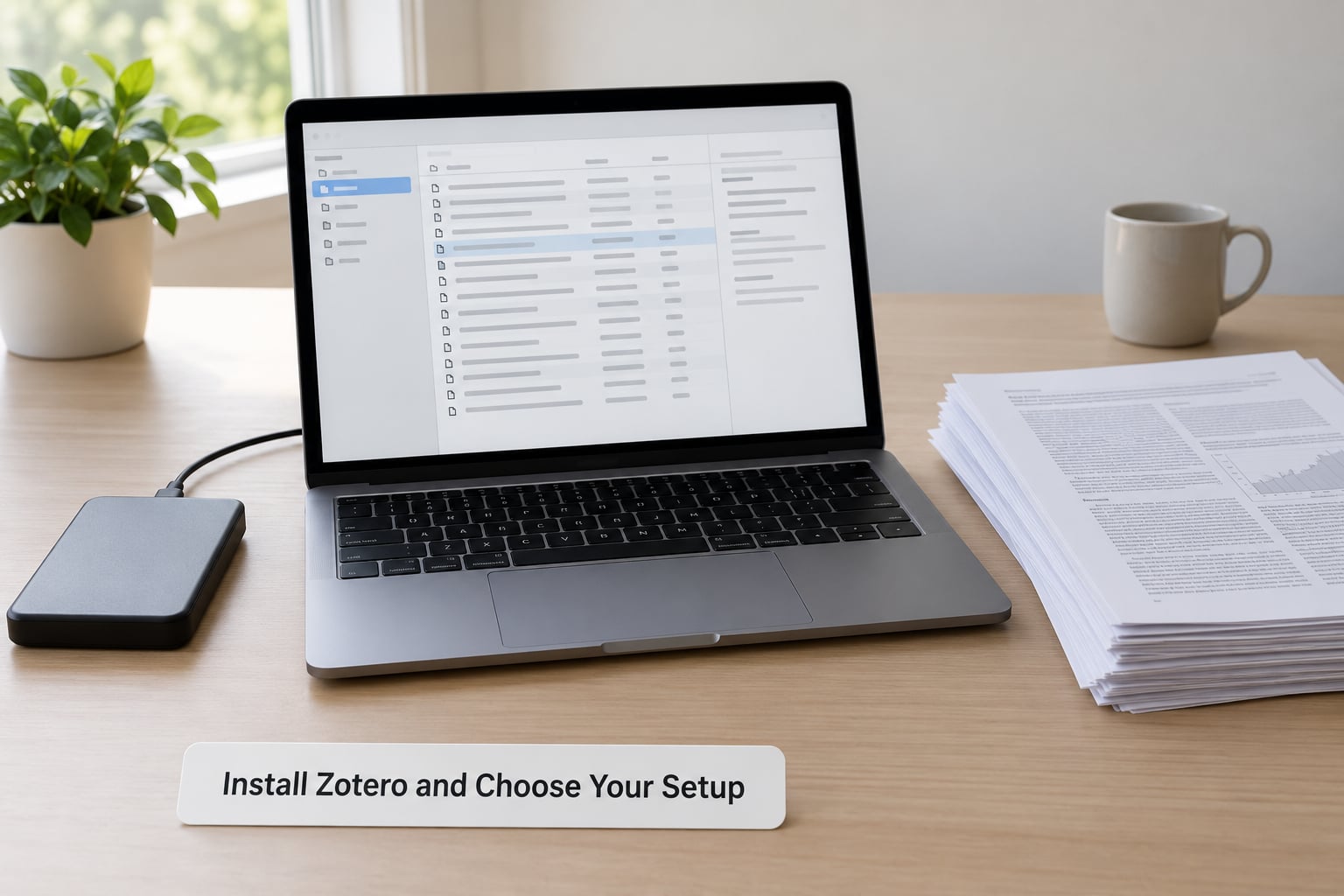
Go to the Zotero download page, pick the build for your operating system, install it, and launch the app. The installer is the same on all three platforms, so nothing exotic to configure. It is worth bookmarking the download page because the Zotero Connector for your browser lives on the same screen.
Next, create a free account and turn on sync. Open Edit, then Preferences, then Sync, sign in with your account, and choose to sync both data and files. Sync keeps the library identical across your laptop, your office desktop, and the web library.
Install the Zotero Connector from the same download page, and pin the Zotero tab in your browser toolbar. You will use that icon far more often than any menu inside the app.
| Capability | Zotero desktop app | Zotero web library |
|---|---|---|
| Insert citations into Word and Google Docs | Yes | No, web cannot edit those documents |
| Add or edit item metadata | Yes | Yes |
| Read and annotate PDFs | Full reader with split view | Basic reader in the browser |
| Work offline | Yes, everything except sync | No |
| Group libraries and sharing | Yes | Yes |
If your institution blocks software installs on the machines you use, the web library still handles collecting, tagging, and sharing. You just lose in-document citation, which is the part most people care about.
2. Create Collections for Your Research Project
Click the New Collection icon at the top left and name it after the project rather than the format, something like Sleep Quality and Shift Work instead of Journal Articles. Projects get renamed, formats get reused.
Inside that collection, add subcollections only when the split is genuinely useful: one per chapter, one per analysis type, one for the sources you still need to read. Subcollections nest as deep as you like, and an item can sit in several of them at once.
Two habits keep this from turning into filing work. First, do not create a subcollection for every source type unless your writing style demands it, because tags cover that job better. Second, keep a separate collection per project so you can export one library at the end without sifting through everything else.
3. Add References and Attachments
The fastest route is by identifier. Click the green plus button, choose Add by Identifier, and paste a DOI, ISBN, PubMed ID, or arXiv ID. Zotero looks up the publisher record and fills in the author, title, journal, volume, issue, pages, and year for you.
For anything without an identifier, open the article in your browser and click the Zotero Connector icon. Most journal pages, library databases, and preprint servers have metadata the connector recognises, and it usually attaches the PDF at the same time. For pages it cannot read, choose Save Page as Web Page instead.
Two more routes matter. The new item button creates a blank record when you want to type the details yourself, and setting the item type first keeps the fields correct. And if you already have PDFs on disk, drag them straight onto a Zotero item to create a child attachment, or use Attach Link to File so the library stays small.
Moving in from another manager takes a few minutes. Export your EndNote, Mendeley, or Paperpile library as an RIS or BibTeX file, then use File, Import in Zotero and pick that file. Check what came through after the import.
| Coming from | Export format to choose | What usually survives |
|---|---|---|
| Mendeley | RIS | All fields and most PDFs |
| EndNote | RIS or EndNote XML | Fields; PDFs need re-attaching |
| Paperpile | RIS | Fields; PDFs need re-attaching |
| A publisher or database | RIS or BibTeX | Fields only |
Verification is the step students skip and later regret. Open a few imported items and read the author names, the year, the journal title, and the page range. When the connector misreads a title or garbles a DOI, edit the fields by hand, or right-click the item and refresh its metadata from the DOI to pull a clean record.
4. Organize Items with Tags, Notes, and Saved Searches
Use tags for anything that crosses projects: methodology, population, outcome measure, your own status markers such as to-read or excluded. Click the Tags tab at the top of the item pane, or press the new tag button, and use short stable words. Renaming every item title to encode a category is the habit worth dropping, because the title is what your bibliography prints.
Notes come in three useful forms. An item note holds your summary of that specific source, a collection note holds a description of everything in that folder, and annotations are highlights made inside the PDF reader. Zotero 7 opens a second window for any item when you right-click and choose to view it in split view, so the source sits beside your notes while you write.
Saved searches are the quiet feature people miss. Right-click My Library, choose New Saved Search, and set conditions such as Author contains, Year is greater than, or Tag is. The results update on their own as your library grows, which beats re-running the same search every week during a literature review.
5. Cite Sources in Word, Google Docs, or LibreOffice
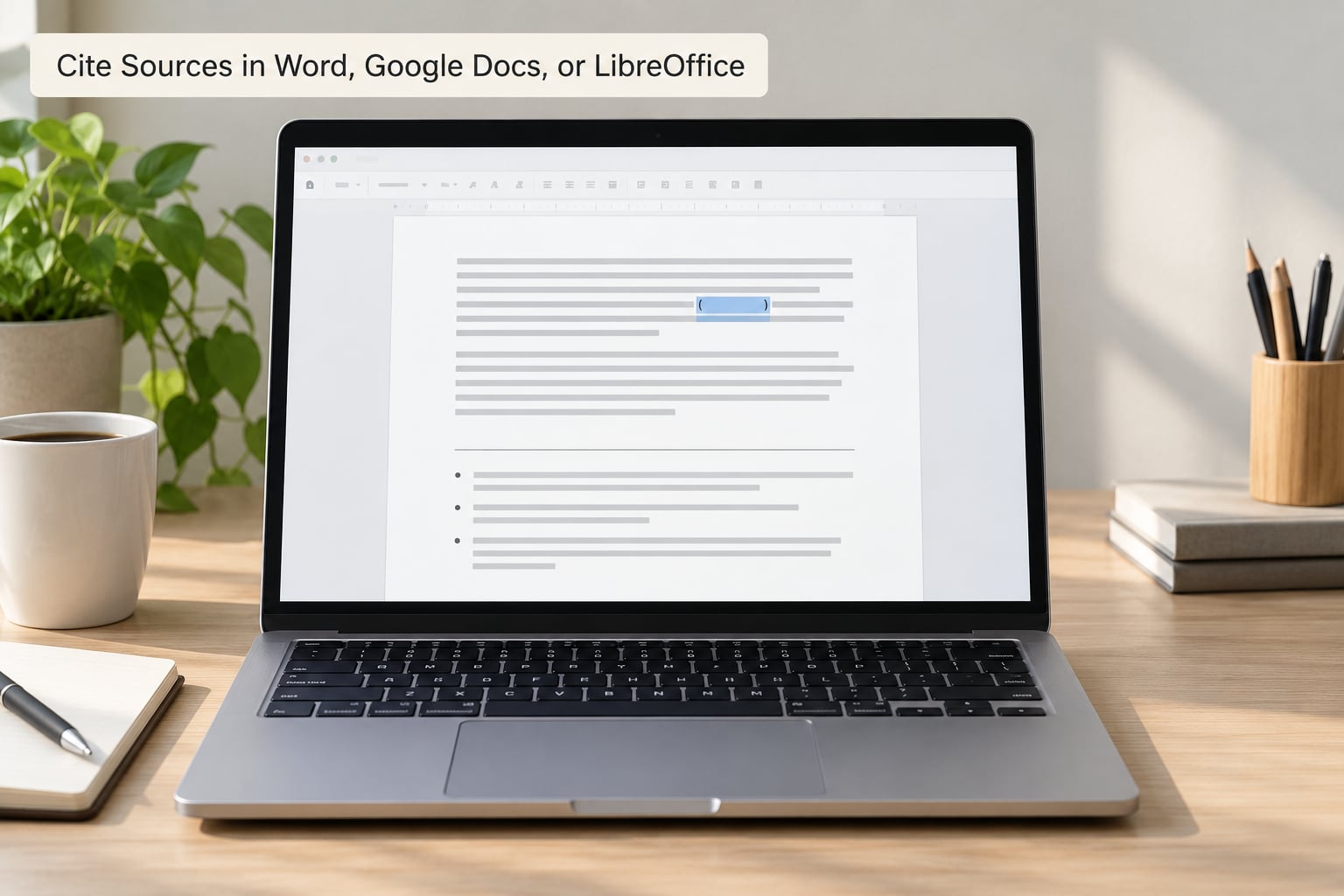
Open Word while Zotero is running and a Zotero tab appears in the ribbon. Put your cursor where the citation belongs, click Add/Edit Citation, and start typing an author name, a title, or a year. Pick the right item from the list and press Enter, and Zotero drops the formatted citation into the sentence.
| Button | What it does |
|---|---|
| Add/Edit Citation | Inserts a new citation or reopens the selected one for editing |
| Add/Edit Bibliography | Inserts, moves, or refreshes the reference list |
| Document Preferences | Sets the citation style for this document only |
| Refresh | Reformats every citation and the bibliography from current library data |
| Unlink Citations | Converts citations to plain text and cannot be undone |
To point at a specific page, click into the existing citation to open the Edit Citation window, move the cursor to the locator field, and enter the page, range, chapter, or section. A locator for pages 45 to 47 renders as a page range in the sentence, which is what most style guides want.
Unlink Citations is the one to treat carefully. It turns every citation into ordinary text so you can submit a journal that wants unformatted references, but there is no undo and no way back into Zotero for that document.
In Google Docs, open the document in Chrome, Edge, or Firefox with the Connector installed, and a Zotero menu appears in the toolbar. It inserts citations the same way, and it works from the web library, so collaborators without the desktop app can still add references.
LibreOffice users find Zotero under the Zotero menu in the menu bar, with Insert Citation and Add/Edit Bibliography in the same positions as Word.
6. Choose a Citation Style and Create a Bibliography
Pick the style your department requires before you start writing, not after. Click Document Preferences in the Zotero ribbon tab and choose from the list, for example American Psychological Association 7th edition for APA, Modern Language Association for MLA, or Chicago Manual of Style for history and humanities work.
Changing the style here changes only that document. Your library data stays untouched, so an APA dissertation and an MLA conference paper can sit in the same library at the same time.
With a style set, place the cursor where the reference list belongs and click Add/Edit Bibliography. Zotero pulls in every item cited in the document, formats them in the chosen style, and sorts them as that style requires. Need the list somewhere else, such as a slide or an email? Right-click any collection and choose Create Bibliography from Collection, then copy the formatted text.
Journals often ask for a house style that is not on the default list. Search for the journal in the Zotero Style Repository, install the style file, and it appears in the Document Preferences list alongside the built-in ones.
7. Check, Export, and Back Up Your Library
Before you submit anything, run three checks. Select a handful of items and open the duplicate view to find records that arrived twice during an import or a connector save; select all of them and delete as duplicates. Open a few PDFs to confirm the attachments are attached rather than merely linked. And read the bibliography once, because software formats a wrong author name just as neatly as a right one.
Then export. Right-click My Library, choose Export Library, and save the whole thing as a Zotero RDF file, RIS, or BibTeX. That single file is your backup, and it restores into Zotero or into any other manager.
Know where your data lives. The library sits in a Zotero folder inside your user directory on Windows and in your home folder on macOS and Linux. Close Zotero, copy that whole folder somewhere safe, and you have a full snapshot including PDFs. For anything larger than the free storage allowance, set up WebDAV sync or keep PDFs in a linked folder that your existing backup already covers.
Group libraries handle shared work. Create one from the right-click menu on My Library, set its permissions, and other people join with the group identifier or an email invitation. Everyone cites into the shared library, which removes the usual email chain about who owns the reference list.
Common Mistakes
The Zotero tab never appears in Word. Close Word completely, reopen it with Zotero running, and check that the add-in is enabled under File, Options, Add-ins in recent Word versions. Institutional Microsoft 365 tenants sometimes block add-ins from the store, which shows up as the same missing tab with no error message.
The citation came out with a mangled author or title. Connector metadata is often wrong on publisher pages built with unusual templates. Fix the field by hand, or right-click the item and refresh metadata from the DOI.
Every source exists three times. Saving the same article through the connector, a database export, and a manual entry creates three records. Use the Duplicate Items view, select the group, and delete as duplicates.
PDFs open as broken icons. Linked attachments point at a file that moved. Switch to Attach Stored Copy to File for anything you did not author yourself, and keep linked files inside a folder your backup covers.
Half the document uses one style and half uses another. Someone inserted citations after changing the style, or a co-author pasted plain text. Set the style in Document Preferences once, then click Refresh to reformat everything from the library.
The library structure collapsed into twenty folders. Collections that mirror the writing process get stale the moment a chapter is reordered. Keep one collection per project, and move cross-cutting attributes into tags and saved searches.
Sync stopped or file sync failed. Check that you are signed in under Edit, Preferences, Sync and that Zotero Storage has room. Very large attachments on a slow connection stall the queue; syncing data only and keeping PDFs in a linked folder is a common workaround.
The app gets slow with thousands of items. Large libraries with many attachments drag on most machines. Turn off full-text indexing of PDFs in the same preferences pane, empty the trash after bulk deletes, and restart Zotero after an import rather than trying to keep working through it.
Frequently Asked Questions
What is the fastest way to learn how to use Zotero to manage references as a beginner?
Install the desktop app, create a free account, and add the browser connector first. Then make one collection for your current project and add three references through Add by Identifier. Once you can insert a citation and see a bibliography appear in Word, the rest of the features make sense on their own. Most people are productive within a single sitting.
How do I use Zotero for APA referencing?
Put one entry per source in your library with the author, date, and title correct, then choose American Psychological Association 7th edition under Document Preferences in the Word ribbon. Insert citations with Add/Edit Citation and add page numbers in the locator field when your guide requires them. Click Add/Edit Bibliography at the end of the document and Zotero builds the reference list, alphabetised, with the hanging indent applied.
What are the disadvantages of Zotero?
The honest ones are performance, storage, and web features. Large libraries with many PDFs can lag noticeably. Free Zotero Storage is 300 MB, so heavy PDF collections need linked files or WebDAV. The web library cannot insert citations into Word or Google Docs. Metadata capture occasionally fails on badly built publisher pages, and the learning curve in the first week is real.
Which one is better, EndNote or Zotero?
Zotero wins for most students and researchers today. It is free and open source, keeps every citation style built in, and imports an EndNote library through an RIS file. EndNote still has deeper features for corporate libraries and some discipline-specific styles, and it is what some supervisors already use. If your department requires one, match it rather than switching alone.
Why isn’t my Zotero library saving?
Nothing has usually been lost. The app writes to your computer continuously, and sync to the cloud runs on a schedule you can trigger. Check the sync icon in the toolbar for errors, and confirm you are signed in under Edit, Preferences, Sync. Export your library to a Zotero RDF file from the right-click menu on My Library and keep that as a dated backup.
How do I cite a specific page from a book in Zotero?
Insert the citation as usual, then click inside it to open the Edit Citation window and type the page, page range, chapter, or section into the locator field. A locator is what produces (Author, Year, p. 45) or a range such as pages 45 to 47 in the finished text. It works the same way in Google Docs through the Connector menu.
Conclusion
Start with one collection named after the project you are actually writing, add every source through Add by Identifier or the connector, and spend ten minutes fixing the author and year fields. Attach the PDF, tag the items you will cite, then set the required style under Document Preferences and start citing. When the draft is finished, clean duplicates, click Refresh, and export a Zotero RDF file as your backup. Every later paper starts from that library instead of a blank folder.