
Display logic in Qualtrics makes a question or a block of questions appear only when a condition built from an earlier answer is true. Learning how to add display logic in Qualtrics takes about ten minutes: select the question, open the Logic tab, click Add Display Logic, and define the answer that should trigger it.
Here is the short version before the details.
- Logic lives on the question or block itself, not on the answer that triggers it.
- The value you type must match the on-screen answer label exactly, including capital letters.
- Rules are re-checked when the respondent moves to the next page, so same-page rules need a page break.
- Test each path in Preview with a fresh session, then publish and retest the live link.
All menu labels below come from the Qualtrics web survey editor. Qualtrics shifts a few button names between releases, so if your editor says something slightly different, look for the control that does the same job.
Table of Contents
- 1What You Need
- 2Step-by-Step: How to Add Display Logic in Qualtrics
- 3Choose What the Rule Should Control
- 4How to Add Display Logic for a Single Question
- 5How to Add Display Logic to a Block or Page
- 6Create Conditions from One or More Answers
- 7Add Display Logic for a Multiple-Choice Question
- 8Review and Simplify the Logic
- 9Test Every Display-Logic Path
- 10Publish and Verify the Final Survey
- 11Common Mistakes
- 12Quick Tips Before You Launch
- 13Frequently Asked Questions
- 14Where is display logic in Qualtrics?
- 15Can I add logic to a question or a whole page in Qualtrics?
- 16Why is my conditional question not appearing?
- 17How do I choose between AND and OR in Qualtrics logic?
- 18Can I use display logic with multiple-choice questions?
- 19How should I test Qualtrics branching before publishing?
- 20Conclusion
What You Need
Three things: an active Qualtrics account with permission to edit the survey, the survey open in the web editor rather than in Preview mode, and a decision about what the rule should control.
That last one matters more than people expect. Display logic can govern a single question, an entire block, or a page, and picking the wrong unit is the reason rules end up duplicated across five questions when one block-level rule would have done the job.
Before you open Logic, write down the trigger in one plain sentence: if the respondent selects X in question Q, then show question R. If you cannot write that sentence yet, the survey is not ready for logic.
Step-by-Step: How to Add Display Logic in Qualtrics
Choose What the Rule Should Control
Decide the unit first, because each one is set from a different place in the editor.
| Logic type | What it controls | Where you set it | What the respondent experiences |
|---|---|---|---|
| Display logic | Whether a question or block is visible | The Logic tab on the question or block | The item is not on their screen at all |
| Skip logic | Which question comes next | The Logic tab on the question being skipped from | They jump past a question and do not see it |
| Branch logic | Which block or page set appears | Survey Flow, on the block or group | They get one version of the survey out of several |
The practical difference is intent. Display logic hides something that is irrelevant, such as a follow-up for an option nobody picked. Skip logic moves someone past a question on purpose. Branch logic splits respondents into entirely different paths. A support satisfaction follow-up is display logic; a screener that ends the survey for ineligible respondents is usually skip logic aimed at an End of Survey block.
How to Add Display Logic for a Single Question
This is the core walkthrough, and it is the part most people search for when they want to add display logic in Qualtrics for the first time.
- Open your survey from the Qualtrics Projects page and click Edit. You cannot add logic from Preview.
- In the editor, click the question you want to make conditional.
- Open the Logic tab in the question toolbar.
- Click Add Display Logic.
- Under Show the question if, open the first condition dropdown and pick the source question that holds the trigger answer.
- Set the comparison to is equal to, then pick the answer option from the second dropdown.
- Click Add Condition if the rule needs more than one test, then choose Any conditions or All conditions.
- Save the question, and check that the rule now appears in the logic summary listed on the Logic tab.
How do you know it worked? The Logic tab shows a short summary of the rule, something like Q12 is equal to Very satisfied, in plain text. If that summary line is there, the rule is stored.
A worked example: on a customer support survey, Q4 asks how satisfied you are with the support you received, with options Very satisfied, Satisfied, Neither, Dissatisfied. On Q7, which asks what went wrong, open the Logic tab, click Add Display Logic, set the source question to Q4, set the comparison to is equal to, and choose Dissatisfied. Anyone who picks anything else never sees Q7.
If you want the follow-up for a different unhappy answer as well, add a second condition and set the rule to Any conditions, so either answer on its own shows Q7. Two conditions set to All conditions would require both answers at once, which is almost never what you want here.
How to Add Display Logic to a Block or Page
The principle is identical, only the target is bigger. A block is a group of questions that moves through the survey as a unit, and setting one rule on the block beats setting the same rule on each question inside it.
- In the editor, open Survey Flow so you can see the blocks as they are ordered.
- Click the block you want to make conditional, then open its Logic controls.
- Add a display rule that shows the block only when the trigger answer is selected.
- Set the condition the same way you would on a question: source question, comparison, answer option.
- Save, then run the survey in Preview once with the trigger answer and once without it.
How do you know it worked? With the trigger answer selected, every question in the block appears in sequence. Without it, the block is skipped as one unit rather than question by question.
One caveat: a block-level rule applies to the whole block, so a question inside it cannot carry display logic that overrides the block. If two questions inside a block need different triggers, pull them into separate blocks and set two rules.
Create Conditions from One or More Answers
Conditions are built from three parts: the source question, the comparison, and the value. The comparisons you will use most in Qualtrics are is equal to, is not equal to, contains, is answered, and is not answered.
- is equal to for a single-choice answer such as a satisfaction scale or a yes/no screener.
- is not equal to when a follow-up should appear for every option except one. This is the natural condition for an Other, please specify box, since the box only makes sense when the respondent picked Other.
- contains for text answers, and for check-all-that-apply questions read through embedded data.
- is answered and is not answered when you care that someone entered something rather than what they entered.
With two or more conditions, the Any conditions versus All conditions choice decides the logic. All conditions means every test must pass, which is an AND, and that is what Qualtrics uses by default on a new rule. Any conditions means at least one test must pass, which is an OR, so you have to switch to it deliberately.
Concrete case: show a complaint detail block only if the respondent selected either Poor service or Very poor service on a rating question. That is two conditions set to Any conditions, because either answer on its own should trigger the block. Now suppose the block should appear only if they rated service poorly and left a comment. That is two conditions set to All conditions, one on the rating and one on the comment box using is answered. Leave those two on All conditions by accident and the block almost never appears, which is the most common AND/OR mistake in the other direction.
You can also set the fallback with Otherwise show the question, so the item is visible by default and hidden only when a specific condition is met. That is useful when the condition depends on a value that may be missing, since the question will not disappear for a blank answer.
Add Display Logic for a Multiple-Choice Question
Yes, display logic works with multiple-choice questions, but Qualtrics stores what the respondent selected rather than the label you read on screen. That distinction explains most of the broken multi-select rules people report.
For a single-choice question, the condition dropdown offers the answer options directly, so you never type a value. For a check-all-that-apply question, Qualtrics records each selection as a separate stored value under a choice group, and you reference that value with embedded data syntax such as ${q://QID187/ChoiceGroup/SelectedAnswers/2}, where QID187 is the source question ID and 2 is the position of the selected choice.
Two rules save you here. First, field names are case-sensitive, so a condition written as SelectedAnswers will not fire against selectedanswers. Second, never guess the path. Build the question, submit one real response with the option you want to target, open the Data and Analysis tab, and read the value that Qualtrics actually stored. Copy that value into the condition.
For a worked example, suppose respondents tick any of three complaints and you want a follow-up text box only when Service was slow is ticked. Set the source question to the multi-select, set the comparison to is equal to, and enter the stored value for that specific choice. If you want the follow-up when any of the three is ticked, add three conditions and set them to Any conditions.
Individual option-level logic inside a multi-select, such as showing a None of the above option only when nothing else is ticked, is not handled by the native builder. That case needs a custom script in the Extra JavaScript editor on the question, and it is worth a look only when you are comfortable maintaining code in your survey.
Review and Simplify the Logic
Once several rules are in place, read them as a set rather than one at a time. You are looking for three problems: two rules that contradict each other, a condition that can never be true, and an expression so long that nobody will understand it six months from now.
Consider a before-and-after. Before: Q12 is equal to Dissatisfied OR Q12 is equal to Very dissatisfied OR Q13 is answered. After: Q12 is equal to Dissatisfied OR Q12 is equal to Very dissatisfied, on Any conditions. The second version is shorter, and a reader can check it in a few seconds.
Give every condition a name that describes the case rather than the mechanic, for example Show complaint detail. Logic names surface in Survey Flow and in your own notes, and a rule called Condition 1 tells you nothing six months later.
Test Every Display-Logic Path
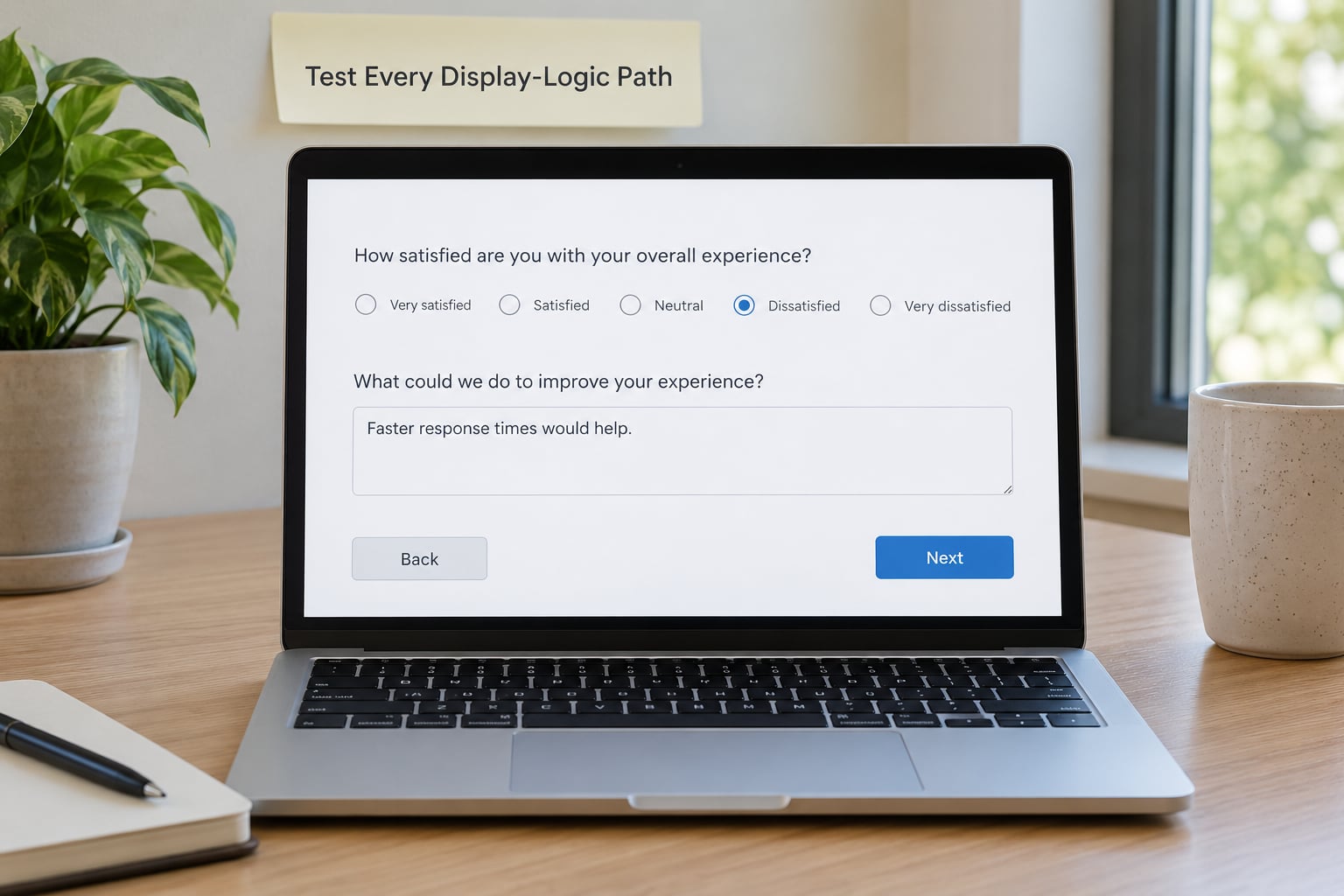
Testing is where most logic errors surface, and one Preview run is never enough. Each path through your survey needs its own run.
- Open the survey in the editor, save your changes, then launch Preview rather than reusing an old preview tab.
- Run the survey once as a new response and choose an answer that satisfies the condition.
- Confirm every question the rule should reveal appears, and that the questions it should hide are absent.
- Close the preview tab completely, reopen it, and run the survey again choosing an answer that fails the condition.
- Repeat for each remaining combination, including the one where the triggering question is skipped entirely.
How do you know it worked? In the run where the condition is true, the conditional item shows and any required question inside it is answerable. In the run where it is false, the item is nowhere on the screen, and the respondent reaches the next page without being stopped by a required field that is not on their screen.
That last check catches the nastiest bug in this whole area. If a required question sits inside a block that display logic can skip, respondents on the hidden path either hit an error or, in some configurations, submit without the answer, and the field ends up silently blank in your export. Test the skipped path deliberately, not just the shown one.
Publish and Verify the Final Survey
Save every change first, then use Publish so the live survey link serves the current version. A logic change that has not been published keeps working in the editor and in Preview while the live link keeps serving the old behaviour, which is a common source of confusion when a colleague tests the link and reports that your rule does nothing.
Open the live link in a private window and run one full response end to end. Then check the first completed response in the Data and Analysis tab: questions that were hidden should be recorded as not shown rather than as ordinary blanks, and the answers you expected to be conditional should be there.
Worth knowing, and it explains a lot of odd behaviour: Qualtrics evaluates display rules as the respondent moves through the survey, so a rule whose target sits in the same block as the trigger will not take effect until the respondent moves to the next page. Put a page break between the trigger and the conditional item if you need the item to appear without a click on Next.
Common Mistakes
These are the failures that come up over and over on the Qualtrics community board, and each has a direct fix.
- The rule is on the wrong question. Display logic goes on the item being shown or hidden, not on the question that holds the trigger answer. Fix: open the target question, not the source.
- The change was not saved. The rule appears in the dialog but not in the logic summary. Fix: click Save on the question, then reopen the Logic tab and confirm the summary line is there.
- Only the default path was tested. The survey works in Preview and fails on the live link. Fix: publish, then test every branch on the live link in a private window.
- Answer text was typed instead of the stored value. A comparison typed as a paraphrase of the label never matches. Fix: copy the label from the editor, or read the stored value from a real response in Data and Analysis.
- Overlapping conditions. Two rules on the same question, one with Any and one with All, produce behaviour nobody can predict. Fix: combine them into one rule with explicit Any or All grouping.
- Wrong AND/OR choice. Two alternative answers left on All conditions can never both be true, so the follow-up never appears. Fix: alternatives go on Any conditions; requirements go on All conditions.
- Case-sensitive embedded data. A field written as SelectedAnswers will not match selectedanswers, and the condition fails without an error. Fix: match the case shown in a real response record exactly.
- A required question is hidden on every path. Respondents are blocked or the value is left blank. Fix: set a default display state, remove the required flag from conditional items, or give the item a fallback value through the Otherwise show the question option.
If a question seems to be the problem itself, particularly a side-by-side or drill-down question that has been copied in and out of other surveys, delete it and add it again. Community cases exist where the question object was corrupted and no logic change made any difference until the question was replaced.
Quick Tips Before You Launch
- Name every condition after the case it handles, not after its position.
- Test all answer combinations, including the path where the triggering question is skipped.
- Write down the intended paths before you build, so the logic has a specification to be checked against.
- Keep the rule count low. One well-placed block rule beats six per-question rules.
- Check required questions on both the shown and hidden path.
- Have a second researcher run the live survey once before you distribute it to the full sample.
Frequently Asked Questions
Where is display logic in Qualtrics?
Display logic sits on the question or block you want to control. Open the survey in the editor, click the question, choose the Logic tab in the question toolbar, and click Add Display Logic. From there the Show the question if dropdowns let you pick the source question, the comparison, and the answer option. Blocks are reached through Survey Flow, where you select the block and open the same Logic controls.
Can I add logic to a question or a whole page in Qualtrics?
You can do either. Question-level display logic is set on the Logic tab of the question itself and controls that item only. Block or page-level logic is set from Survey Flow by selecting the group and adding a condition, which shows or hides every question in the group together. Block rules are the better choice when a set of follow-up questions always appears or disappears as a unit.
Why is my conditional question not appearing?
Five causes account for most of these cases. The value you typed does not match the stored answer exactly, embedded data field names are case-sensitive, the preview tab is running an old session, the survey was never republished after the change, or the rule sits in the same block as the trigger so it is not evaluated until the next page. Check the stored value in Data and Analysis first, then close and reopen Preview, then republish.
How do I choose between AND and OR in Qualtrics logic?
Qualtrics offers Any conditions and All conditions. All conditions is an AND, and every test must pass before the item appears. Any conditions is an OR, and one passing test is enough. Use All conditions when the answers must combine, such as a low rating plus a written comment. Use Any conditions when each answer on its own should trigger the follow-up, such as two different bad ratings. A new rule starts on All conditions, so check the grouping before you publish.
Can I use display logic with multiple-choice questions?
Yes. Single-choice questions give you the answer options directly in the condition dropdowns. For check-all-that-apply questions, Qualtrics stores each selection separately, so you reference the stored value with embedded data syntax such as ${q://QID187/ChoiceGroup/SelectedAnswers/2}, where the number is the position of the choice. Submit a real response and read the stored value from Data and Analysis rather than guessing the path. Per-option visibility inside a multi-select needs custom Extra JavaScript.
How should I test Qualtrics branching before publishing?
Test each path separately with a fresh Preview session, then repeat on the live link after publishing. Run the survey choosing an answer that satisfies the condition and confirm the conditional items appear. Close the preview tab, reopen it, and run again with an answer that fails the condition. Also test the path where the triggering question is skipped, and confirm no required question blocks a respondent whose screen does not show that field.
Conclusion
The reliable version of how to add display logic in Qualtrics is short: select the question or block you want to control, open Logic, choose Add Display Logic, define the answer that triggers it, save, and then test every path before you publish.
Start with one rule on a single question and get it working end to end. Once you have seen it fire in Preview and on the live link, adding the rest of your conditions is repetition rather than guesswork.