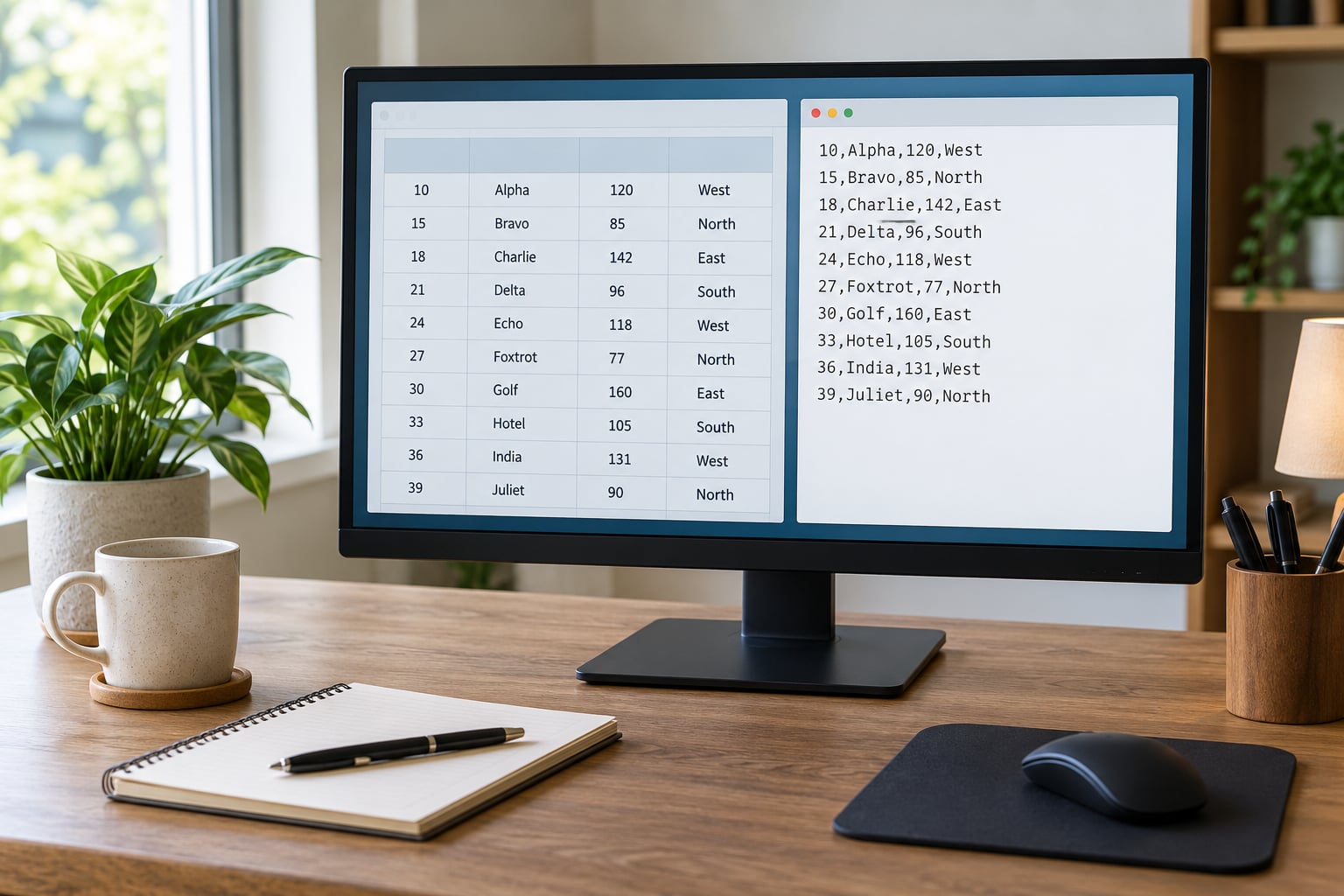
If you want to know how to import CSV data into Stata, the short answer is one command: import delimited "survey.csv", clear, run it from the folder where the file lives. That reads the text file, turns each column into a variable, each row into an observation, and replaces whatever is currently in memory. The rest of this guide covers the options that decide whether those variables arrive as numbers or as text, which row holds the variable names, and what to do when the file refuses to cooperate.
Almost every Stata course starts this way, so if you have a file with columns like id, age, gender, and income, everything below applies to your homework, thesis, or replication file. Everything happens inside Stata. You never need to open the file in Excel first, which matters because the moment you edit a CSV in Excel you have quietly broken the reproducibility of your analysis.
Table of Contents
- 1What You Need
- 2Step-by-Step
- 31. Check the CSV File Before Importing
- 42. Use Stata’s CSV Import Dialog
- 53. Set the File Location and Import Options
- 64. Map Columns and Choose Variable Types
- 75. Verify the Imported Dataset
- 86. Save the Stata Dataset
- 9Which import command should I use?
- 10Common Mistakes
- 11Frequently Asked Questions
- 12Can I import a CSV file into Stata without using the menus?
- 13How do I import a CSV file from Excel into Stata?
- 14Why are all of my CSV variables imported as strings?
- 15What is the best Stata command for importing a large CSV file?
- 16How do I tell Stata that my CSV uses semicolons instead of commas?
- 17How do I keep blank CSV cells as missing values after import?
What You Need
You need four things, and three of them you probably already have.
- The CSV file itself, wherever it sits on your computer. A CSV is plain text with values separated by a delimiter, usually a comma.
- Stata 13 or newer.
import delimitedarrived in Stata 13 and is the command for every current release, including Stata 18 and 19. If you are on Stata 12 or older, the command you need isinsheet, and I flag the differences as they come up. - A text editor such as TextEdit, Notepad, or VS Code, just to look at the first two or three lines of the file. Five minutes of looking saves twenty minutes of guessing.
- A copy of the file. Make one before you do anything else. Importing never edits the source file, but exporting back over the same name will.
One more practical note about paths. Stata’s file paths look different on Windows, macOS, and Linux, and quotes matter. Windows uses backslashes or forward slashes inside a quoted path; macOS and Linux use forward slashes from the root folder. A path with a space in it always needs double quotes around it, no exceptions.
Typing paths by hand is the single most common way people get stuck. The trick that works everywhere is to select the file in your file manager, copy it, then paste into the do-file editor. Stata will paste the full absolute path in quotes for you, which is exactly why several people on the Stata forum recommend it.
Step-by-Step
Below is the workflow I would teach in a first methods class. Use survey.csv throughout, with the columns id, age, gender, and income. If your file has different names, substitute them; the syntax does not change.
1. Check the CSV File Before Importing
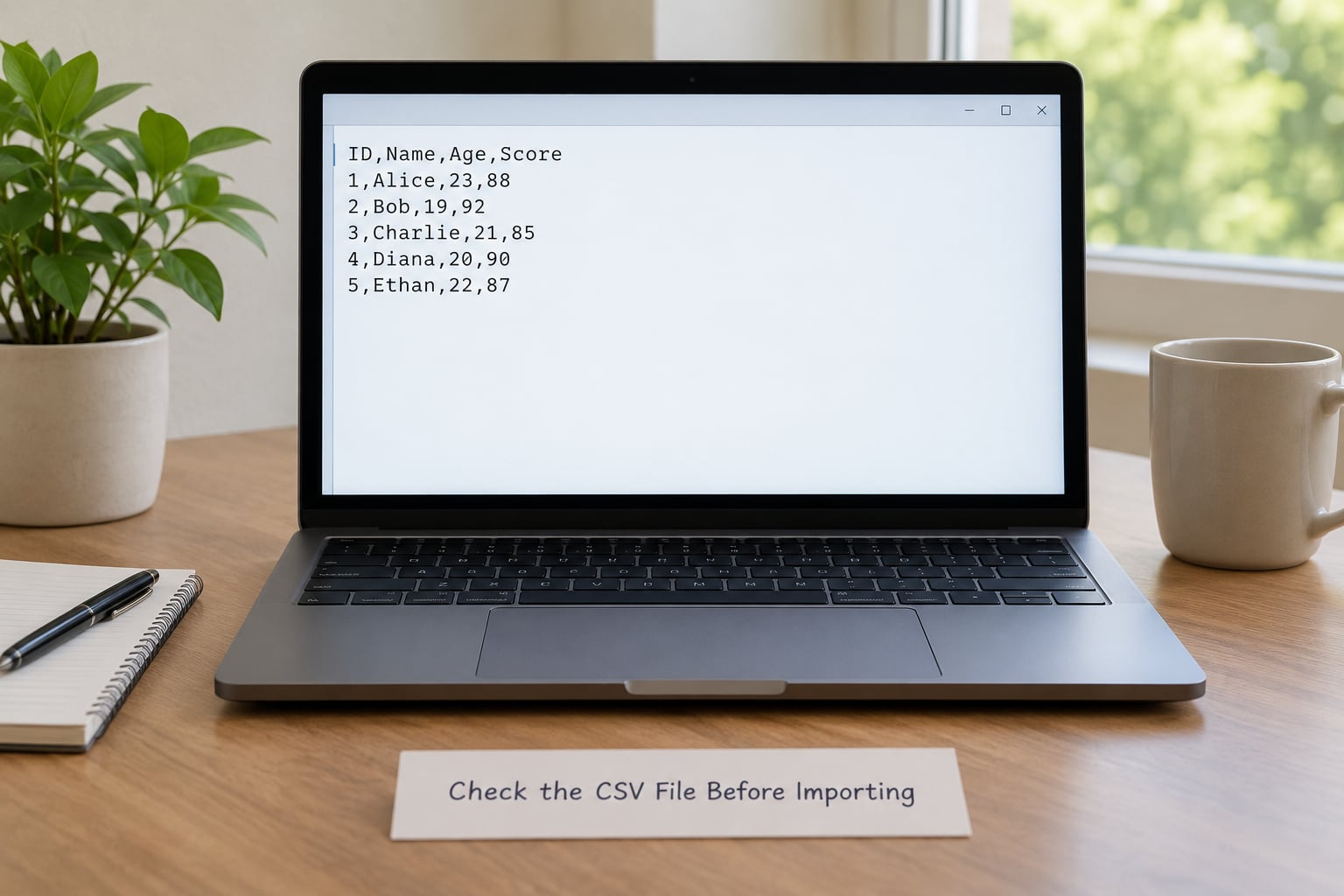
Open the file in a text editor and look at the top three lines. You are checking four things and nothing else.
- The delimiter. If the line reads
id,age,gender,incomethe delimiter is a comma. If it readsid;age;gender;income, Excel in a European locale exported semicolons. If it readsid age gender income, that is tab-delimited text. - Whether the first row holds names. A header row looks like variable names with no numbers. Some downloaded research files put three lines of description at the top instead, and those lines are why imports fail.
- Quotation marks. If you see fields wrapped in quotes, they may contain commas inside them, like
"Smith, Jane". Stata handles that correctly as long as you leave thebindquoteoption alone. - Blank cells. Empty fields between commas import as missing values for numeric variables and as empty strings for text variables. That is usually what you want.
Then copy the file and work on the copy. If the import goes wrong, you still have the untouched original.
2. Use Stata’s CSV Import Dialog
Every recent version of Stata imports CSVs through the same menu. Go to File > Import > Import from text/CSV, or type File > Import > Import from text/CSV in the Results window. Older releases label the same screen Import delimited or Import ASCII, so if you cannot find the exact wording, look for the Import submenu under File.
The dialog gives you the same set of choices as the command line, laid out as a grid with a preview of the first rows. It is genuinely useful when you have never typed an import command, because you can see the effect of each choice before you commit to it.
My own preference is the command line, purely because it lives in a do-file and runs again in six months without any thinking. Use the dialog to learn the options, then write the command by hand.
3. Set the File Location and Import Options
First tell Stata where to look. cd sets the working directory, which is the folder Stata searches when you give it a bare filename.
cd "/Users/you/Documents/stata_project"
import delimited "survey.csv", clear
On Windows the same line reads cd "C:UsersyouDocumentsstata_project". Forward slashes work there too and save you escaping backslashes. Run pwd any time to confirm where Stata thinks it is.
Now the options. These are the ones that matter, with what each one actually does:
| Option | What it does | When you need it |
|---|---|---|
clear | Discards whatever is in memory before the import | Almost always. Without it, the import fails if data is already loaded |
varnames | Treats the first row as variable names | Default for CSVs with a header row |
case(lower) | Converts names to lowercase | Headers arrive as ID, Age, GENDER and you want id, age, gender |
rowrange(start:end) | Reads only the rows you name, and the variables too | Files with description lines above the data or a footnote below it |
delimiters(",") | Sets the column separator explicitly | One-column imports, semicolon files, tab files |
stringcols(n1-n2) | Forces those columns in as text instead of numbers | Long ID numbers, ZIP codes, account numbers with leading zeros |
encoding(utf8) | Reads the file with a specific character set | Accented names, non-English text, files saved by Excel |
bindquote(nobind) | Keeps quotation marks as part of the value instead of removing them | Rarely. Useful for debugging a file whose quotes look wrong |
Two of these deserve more than a table row.
Header and footer notes. Files from research data libraries often open with lines of plain English and close with a copyright note. Those lines have no consistent number of columns, so Stata reads the entire file as a single string variable. This is the most common failure on this topic, and it is why downloaded data lands in one column.
The fix combines three options, and here is why all three are needed:
import delimited "factors.csv", clear rowrange(6:4931) delimiters("") varnames(5)
rowrange(6:4931) skips the description lines at the top and the footnote at the bottom. delimiters("") tells Stata the separator is a space rather than a comma, which is how these particular files are laid out. varnames(5) says row 5 holds the variable names, so the data itself begins on row 6. Using rowrange() on its own does nothing useful if the delimiter is wrong, which is why the one-line fix that works online is usually the three-option version rather than a single flag.
Tab-delimited text files. If your file is a .txt with tabs, do the same thing with a tab delimiter:
import delimited "results.txt", clear delimiters(tab) varnames
Semicolon-delimited files from European Excel work identically with delimiters(";").
4. Map Columns and Choose Variable Types
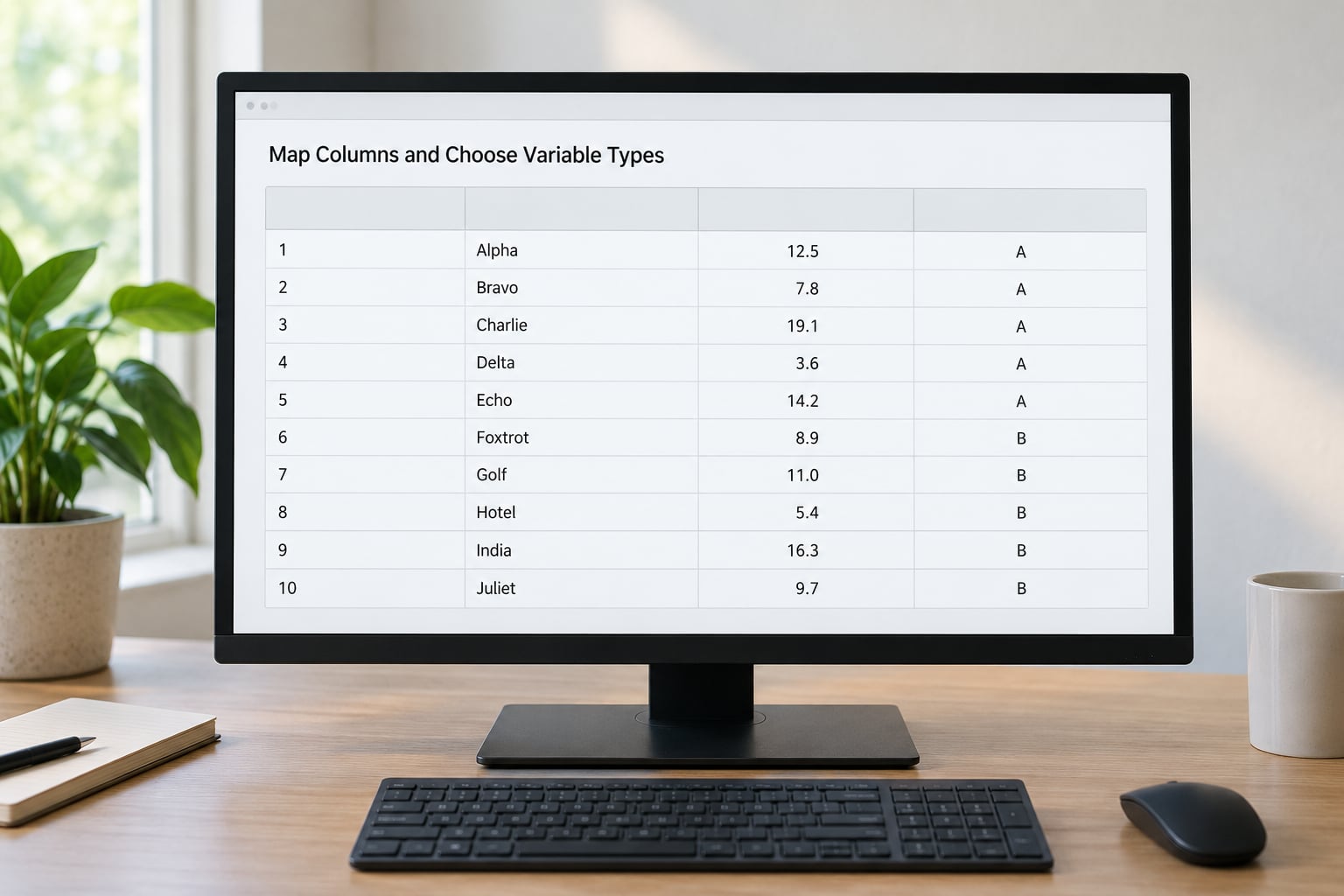
Stata decides whether a column is numeric or string by looking at the first several rows of the file, and it stores the variable with whatever type won. That guess is where most surprises come from.
Run describe right after the import and read the storage types. Here is roughly what you should expect for the sample file:
. describe

Contains data from survey.csv
 obs:   500
 vars:   4          0b
 size:   5,000
------------------------------------------------------------------------------
variable name    storage type    display    value label    variable label
id               long           %12g      _              respondent id
age              int            %8g       _              age in years
gender           byte           %8g       _              1 male 2 female
income           float          %10.0g    _              annual income
------------------------------------------------------------------------------
Sorted by:
The GUI equivalent is the Variable type row at the top of each column in the import dialog, where you can override Stata’s guess and set a column to numeric, string, or date. In Stata 14 and later this is a clickable row; in Stata 13 you specify it with the strings option instead.
Two cases need a decision rather than a guess.
Long identifiers must stay text. A 13-digit ID such as 7612245235086 is exactly at the edge of what a double-precision number stores cleanly, and Stata will display it as 7.61225e+12 if it reads it as numeric. The identifiers are not wrong, but they are unreadable and no longer join cleanly to another dataset. Force the column to string at import time:
import delimited "members.csv", clear varnames(1) stringcols(1)
If the column has already come in as numeric, recast fixes it in place:
recast str13 id
format id %13.0g
format is the display-only rescue when the values themselves are fine but the numbers show up in scientific notation. It changes how Stata prints them and nothing else, so use it only when you know the stored values are intact.
Dates are the other trap. A column of dates in 01/15/2026 format will import as a string variable, because Stata dates are stored as numbers counting days from an origin date. The fix is to tell the column what it is during import and then generate a real date version:
generate interview_date = date(interviewed, "MDY")
format interview_date %td
drop interviewed
After import, add labels so your future self remembers what each column was called. This is a small step that pays for itself the moment codebook prints something readable.
label variable id "Respondent ID"
label variable age "Age in years at interview"
label define sex_lbl 1 "Male" 2 "Female"
label values gender sex_lbl
5. Verify the Imported Dataset
Do not skip this. An import that looks fine in the first screen can still have silently dropped every value in one column, and you will not notice until a regression returns a missing observation count.
describe
count
codebook
summarize income, detail
tabulate gender, missing
assert _N == 500
assert !missing(id)
What each one tells you:
describegives your observation count, variable names, labels, and storage types in one screen. If the count is not what the file should have, something went wrong upstream.codebookprints variable labels, value labels, and a small frequency listing for each variable. If a variable shows nothing but dots, it is all missing.tabulate gender, missingcounts missing values explicitly, which is the fastest way to spot a column that failed to parse.assert _N == 500halts the do-file if the row count differs from what you expect. In a reproducible workflow this is the line that saves you.
assert also works on the data itself. assert inrange(age, 0, 120) stops everything if an impossible age slipped in, which is a cheap check that catches encoding and parsing errors.
6. Save the Stata Dataset
Save early, and save as .dta. The text file you imported from is slow to read and fragile; the .dta file keeps types, labels, and value labels intact.
save "survey.dta", replace
From then on, start every session with use "survey.dta" instead of re-importing. Stata’s native format reads in a fraction of the time, which matters once you are working with a file of a million rows.
If you want the whole thing repeatable, put the steps into a do-file and run it with do import_survey.do:
clear all
cd "/Users/you/Documents/stata_project"
import delimited "survey.csv", clear varnames case(lower)
describe
codebook
assert _N == 500
save "survey.dta", replace
That block is the whole workflow, and it is the one worth keeping. When your adviser asks for a change three months later, you edit one line instead of rebuilding the dataset by hand.
Which import command should I use?
Stata has several import commands and picking the wrong one wastes time. This is the chooser I give students.
| File you have | Command | Notes |
|---|---|---|
| CSV with commas | import delimited "file.csv", clear | Stata 13 and newer. The default choice |
| Tab-delimited .txt | import delimited "file.txt", clear delimiters(tab) | Extension does not matter, the delimiter does |
| Semicolon file from Excel | import delimited "file.csv", clear delimiters(";") | Excel does this in European locales |
| Excel workbook | import excel "book.xlsx", firstrow clear | Works sheet by sheet; use sheet("name") for one tab |
| Legacy Stata, before version 13 | insheet using "file.csv", clear | Older syntax, fewer options, still works |
| Fixed-width text file | infile using "file.txt" clear | Needs column widths spelled out |
| ZIP archive | unzipfile "data.zip" then import | Unzip before importing, not after |
The general rule is that import delimited handles anything with a separator, import excel handles spreadsheets, and insheet exists only for people on Stata 12 or older. I have never had a reason to use infile outside a fixed-width file.
Common Mistakes
Almost every broken CSV import in Stata is one of ten things. Find your symptom in the left column and the fix is in the right one.
| Symptom | Cause | Fix |
|---|---|---|
Everything lands in one column called var1 | Stata cannot see the delimiter, usually because the file is space- or semicolon-separated | Set it explicitly: delimiters(";") or delimiters("") |
| One column of long strings, including the description lines | Preamble or footer rows have no consistent column count | Combine rowrange(6:4931) delimiters("") varnames(5) |
Variable names are age and income only | Header row was read as data | Add varnames to the command |
Names like income1, income2 | No header row in the file at all | Import with novarnames and rename yourself |
| Quotation marks appear inside your text values | The file mixes quoted and unquoted fields | Usually harmless; strip with replace myvar = subinstr(myvar, """, "", .) if it bothers you |
| A stray variable holding row numbers | The file has an unnamed index column | Import with varnames(1) colfirst(2) or drop it afterwards |
Every variable is str# and no regression will run | Stata found non-numeric text in the first rows and gave up on the column | Import with stringcols() off, or clean the offending row, or use destring |
| IDs show as 7.61225e+12 | Long identifiers read as numeric | stringcols(1) at import, or recast str13 id after |
| Accented or non-English characters look wrong | Character encoding mismatch, or a byte order mark from Excel | Add encoding(utf8), or re-save the file as UTF-8 CSV |
| “file not found” even though it is there | Wrong working directory, or an unquoted path with a space in it | Run pwd, then cd to the right folder and quote the filename |
A few of these deserve a second sentence.
All-string variables usually mean the file has a header note, a blank line, or a stray value such as “NA” sitting in a numeric column. Read the file in a text editor and look at the first ten rows. If you must repair it in Stata rather than in the file, destring converts a text variable to a number, and replace can turn problem values into missing first.
replace income = "" if income == "NA"
destring income, replace force
Character encoding bites most often with files exported from Excel on a machine set to a non-US locale. If accented letters turn into symbols, try encoding("utf-8"), then encoding(iso-8859-1), then encoding(latin1) until the text looks right. The same applies to files with smart quotes or currency symbols.
Not overwriting the source is the mistake that hurts. export delimited using "survey.csv", replace pointed at the same filename you imported will destroy the original. Always export to a new name.
Large files are slow for a boring reason: Stata reads the whole file and guesses types from the first rows. A 200 MB CSV can take a minute and use several gigabytes of memory, and that is normal rather than a fault. If it is painful, trim the columns you do not need before importing, or set the types yourself with stringcols() and numericcols() so Stata does not have to guess.
One more habit worth building early. Once the import works, immediately write the commands you ran into a do-file, even if you used the dialog. The import is the step most likely to need redoing when the data updates, and it is also the step you will forget six months from now.
Frequently Asked Questions
Can I import a CSV file into Stata without using the menus?
Yes, and that is the normal way. Run import delimited “survey.csv”, clear from the command window or a do-file. The clear option removes any data already in memory, which is why the command works even when you have a previous dataset open. To avoid typing paths, run cd to your project folder first. In Stata 13 or newer this is import delimited; on Stata 12 or older use insheet using “survey.csv”, clear instead.
How do I import a CSV file from Excel into Stata?
Save the Excel file as a CSV first, then import it with import delimited “survey.csv”, clear. If you would rather read the workbook directly, use import excel “book.xlsx”, firstrow clear, which takes the first row as variable names. Note that Excel exports can carry a byte order mark and, in European locales, semicolons instead of commas, so you may need delimiters(“;”) or encoding(“utf-8″). Avoid editing the CSV in Excel before importing it.
Why are all of my CSV variables imported as strings?
Stata decides a variable’s type from the first rows of the file, and one non-numeric value such as NA, a currency symbol, or a note line is enough to make it keep the whole column as text. Open the file in a text editor and inspect the first ten rows for stray characters. You can force numeric columns with numericcols(2-4), keep identifiers as text with stringcols(1), or convert afterwards with destring. Checking encoding also helps, since broken characters look non-numeric to Stata.
What is the best Stata command for importing a large CSV file?
Use import delimited with the types spelled out rather than guessed. Specifying stringcols() and numericcols() removes the need for Stata to scan rows while deciding storage types, which saves memory on very large files. Set the types once, save the result as a .dta file, and use that file from then on, because Stata reads its native format far faster than text. If the file has preamble lines, add rowrange() so the guess work happens over fewer rows.
How do I tell Stata that my CSV uses semicolons instead of commas?
Add delimiters(“;”) to the import command, for example import delimited “survey.csv”, clear delimiters(“;”). Stata will otherwise see no commas, treat each line as one field, and give you a single string variable. The same option handles tab-delimited files with delimiters(tab) and space-separated files with delimiters(“”). If your file has several semicolons in one line, that is normal and the import handles it once the delimiter is correct.
How do I keep blank CSV cells as missing values after import?
Blank cells become missing values automatically, but the type depends on the variable. A blank cell in a numeric column imports as the Stata missing value, a single dot, and a blank cell in a string column imports as an empty string. Test for either with missing(income), which returns true for both. If a text column imported as numbers, you will see dots instead, so check the storage types with describe before you conclude anything about the blanks.
Start with the short version: cd to the folder, then import delimited "yourfile.csv", clear, then describe to confirm the row count and types before you do anything else. Save the result as a .dta file and paste those same three commands into a do-file so the next version of the data takes a minute rather than an afternoon. When the import looks wrong, the fix is almost always one of the options above, and the troubleshooting table will point you to it.