
To import an Excel file into R, install the readxl package, load it with library(readxl), and point read_excel() at your file path. It reads .xlsx and .xls workbooks, returns a tibble you can analyse straight away, and reads the first worksheet unless you tell it which sheet to use.
Learning how to import data into R from Excel takes about ten minutes once and about five seconds per file after that. Most of the pain beginners hit is not the code itself but two things: R looking in the wrong folder, and a spreadsheet that was never set up for analysis. Both are handled below.
Table of Contents
- 1What You Need
- 2Step-by-Step: How to Import Data into R from Excel
- 31. Install R, RStudio, and the readxl Package
- 42. Place the Excel File Somewhere Predictable
- 53. Run read_excel() to Import Data into R from Excel
- 64. Check the Imported Data
- 75. Fix Common Import Problems
- 86. Save the Data for Later Analysis
- 9Common Mistakes
- 10Frequently Asked Questions
- 11Can I import Excel into R without using RStudio?
- 12Which R package should I use to import an Excel file?
- 13How do I import a specific sheet from an Excel workbook?
- 14Why are my Excel column names or dates incorrect after import?
- 15How do I handle missing values when importing Excel data into R?
- 16Should I save imported Excel data as a CSV or an RDS file?
- 17Conclusion
What You Need
Before you open R, gather four things.
- An Excel file saved as .xlsx or .xls. The older .xls format works too, but .xlsx is the default and the safer choice.
- R and RStudio installed. RStudio is the editor; R is the language itself. RStudio Cloud or Posit Cloud works the same way for this task.
- The readxl package. You install it once per computer and load it once per R session.
- A tidy first sheet. Row 1 holds unique column names, the data starts in row 2, and there are no merged cells, blank spacer columns, or colour-coded notes beside the data.
A quick note on that last point. A workbook that a colleague sent you is usually a report, not a dataset: a title in row 1, the real header in row 3, a pivot table starting at column H. read_excel() will happily read all of that and give you columns called ...2, ...3, ...4. You can fix that in code with skip and range, and I show you how in step 5, but tidying the source file first is five minutes of work you will not have to repeat.
One more thing: if the workbook is password protected, readxl cannot open it. Remove the password in Excel first, or ask for an unprotected copy.
Step-by-Step: How to Import Data into R from Excel
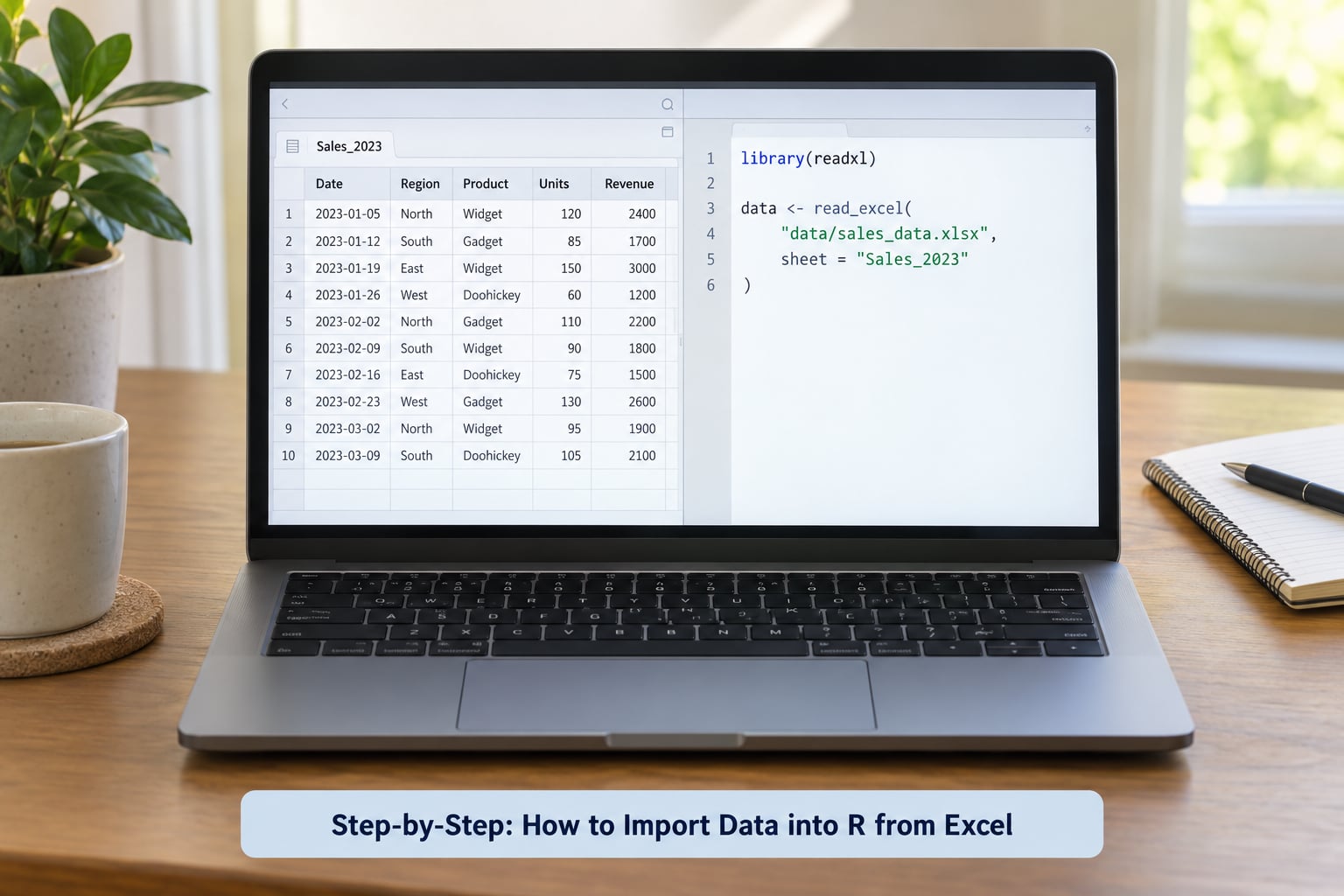
1. Install R, RStudio, and the readxl Package
Download R from CRAN and RStudio Desktop from Posit, then install RStudio in the normal way. RStudio runs on Windows, macOS and Linux; the import steps below are identical on all three.
In the RStudio console, run this once per computer:
install.packages("readxl")Then load it at the top of every script or session that needs it:
library(readxl)readxl has no Java, Perl or external dependency, so if you have had package installation failures on Linux before, this one usually behaves. If library(readxl) reports that the package is not available, restart RStudio after installing, then run it again. Installing the whole tidyverse with install.packages("tidyverse") works as well, and readxl comes with it.
2. Place the Excel File Somewhere Predictable
R looks for a relative file path in its working directory, and beginners rarely know what that directory is. Ask R first:
getwd()
list.files()
getwd() prints the folder R is currently using. list.files() prints what is sitting in it. If your workbook does not appear in that list, R cannot find it, and no amount of retyping the filename will help.
You have three options, in order of how I would set them up.
Use an RStudio project. File, then New Project, then a new directory with a project name such as survey-analysis. This creates a folder containing a .Rproj file. Put your Excel file in a data subfolder inside it, and every script in that project can refer to data/survey.xlsx no matter where the project folder lives. This is the habit worth building, because it is what makes an analysis reproducible a year later.
Set the working directory manually. Click Session in the RStudio menu, then Set Working Directory, then To Source File Location. Or type it, using forward slashes even on Windows:
setwd("C:/Users/yourname/Documents/survey-analysis")
list.files(pattern = ".xlsx$")
Windows paths written with backslashes break in R, because starts an escape sequence inside a text string. Forward slashes work on Windows, macOS and Linux alike. As a fallback, the here package builds paths from the project root so you never type them by hand: here::here("data", "survey.xlsx").
Or just use an absolute path. It works right up until the analysis stops working on another computer, so treat it as the last option.
3. Run read_excel() to Import Data into R from Excel
With the file in reach, the whole import is one line:
survey <- read_excel("data/survey.xlsx")The string is the path. The arrow assigns the result to an object called survey, which now lives in your R session in memory. The original workbook is untouched, and anything you change in survey never propagates back to the file on disk.
By default read_excel() reads the first sheet. To pick a different one, list what is in the workbook and then name the sheet you want:
excel_sheets("data/survey.xlsx")
survey <- read_excel("data/survey.xlsx", sheet = "Clean data")
You can also give a number instead of a name, where 1 is the first sheet: sheet = 2. Names are safer once someone reorders the tabs. For a workbook with a metadata block above the data, restrict the read to the cells you care about:
survey <- read_excel("data/survey.xlsx", sheet = "Data", range = "A4:E120", skip = 3)range uses Excel’s own A1-style notation and stops the reader wandering into the pivot table beside your data. skip drops rows from the top before reading. You rarely need both: use skip when the header is buried a few rows down, and range when you also want to cut off trailing totals.
To pull every sheet into R at once, build a named list:
sheets <- excel_sheets("data/workbook.xlsx")
all_data <- lapply(sheets, function(s) read_excel("data/workbook.xlsx", sheet = s))
names(all_data) <- sheets
For the common case of an 18-sheet workbook where only sheets 9 through 13 matter, index the vector: lapply(sheets[9:13], function(s) read_excel("data/workbook.xlsx", sheet = s)). You get back a list, so reach a single sheet with all_data[[2]] and its column names with names(all_data).
These are the arguments you will reach for most:
| Argument | What it does | Example |
|---|---|---|
| path | The workbook to read | "data/survey.xlsx" |
| sheet | Worksheet name or position | sheet = "Clean data" |
| range | Cell range to read | range = "A4:E120" |
| skip | Rows to ignore at the top | skip = 3 |
| col_names | Whether row 1 holds names | col_names = FALSE |
| na | Strings treated as missing | na = c("", "NA", "-") |
| trim_ws | Strip spaces around text | trim_ws = TRUE |
| col_types | Force a column’s type | col_types = "date" |
If readxl ever leaves you wanting more, openxlsx::read_xlsx() is the alternative worth knowing. It reads and writes Excel files, so it is the one to reach for when you need to write formatting or several sheets back out. For reading a file and getting on with the analysis, readxl stays the default: it is faster and does not bring a large dependency tree with it.
4. Check the Imported Data
Never assume the import worked. Run str() first, because it prints the shape and the type of every column in a few lines:
str(survey)
head(survey)
View(survey)
names(survey)
dim(survey)
str() showing age as num means you have numbers. Showing it as chr means the whole column is text and any arithmetic will fail later. View() opens a spreadsheet-style grid in RStudio, which is the fastest way to spot a header that landed one row too high.
Then check the things that quietly go wrong. sum(is.na(survey$age)) counts missing values in a column. length(unique(survey$id)) compared with nrow(survey) tells you whether your identifier is actually unique. For a column you expected to be numeric or a date, spec(survey) prints the type R chose for each one.
5. Fix Common Import Problems
Column names came out as ...2, ...3. The header is not in row 1. Either move it in Excel or tell R: read_excel(path, skip = 3). If the data has no header at all, use col_names = FALSE and set the names yourself afterwards with names(survey) <- c("id", "age", "score").
Names contain spaces, capitals or stray characters. janitor::clean_names(survey) turns Age In Years into age_in_years across every column in one call, which saves a lot of typing later.
Numbers arrived as text. This is the most common silent failure, and it produces no error at import time. The usual causes in the spreadsheet are thousands separators stored as text, a letter O typed instead of a zero, a stray apostrophe in front of a number, a currency symbol, merged cells, or trailing spaces. Check with is.character(survey$score), then repair at the source where you can. If you must repair in R, as.numeric(as.character(survey$score)) converts a clean column, and col_types = "double" or col_types = c(score = "numeric") forces the type at import time.
Dates arrived as text. A column of dates read as chr breaks sorting and date arithmetic. Set col_types = "date" for the whole sheet, name the columns when there are several, for example col_types = c(collected = "date", age = "numeric"), or convert afterwards with as.Date(survey$collected). If that errors, the day and month order is not what R guessed, so parse it explicitly with as.Date(survey$collected, format = "%d/%m/%Y").
Missing values. Empty cells become NA automatically. Cells containing the text NA, a dash or the word blank do not, so name them: na = c("", "NA", "-", "blank"). After import, is.na() finds the gaps and drop_na() from tidyr removes rows with any of them.
6. Save the Data for Later Analysis
The assignment in step 3, survey <- read_excel(...), is what makes the data reusable inside the session. To keep it for tomorrow, save it as an RDS file, which reloads in milliseconds and preserves column types exactly:
saveRDS(survey, "data/survey.rds")
survey <- readRDS("data/survey.rds")
CSV is the other option. write.csv(survey, "data/survey.csv", row.names = FALSE) produces a file any program can open, which makes it the right choice when a collaborator or supervisor needs the data. It stores everything as text, so types have to be recovered on the way back in with read_csv(). Save as CSV for sharing, save as RDS for your own analysis.
Writing a workbook back out to Excel takes writexl::write_xlsx(survey, "data/survey_clean.xlsx").
Common Mistakes

These are the error messages and odd results that come up again and again in R forums and Stack Overflow threads.
| What you see | What it means | Fix |
|---|---|---|
| Cannot open file ‘survey.xlsx’: No such file or directory | R is looking in the working directory, not in Downloads | Run getwd() and list.files(), then setwd() or move the file |
| Error in file: cannot open the connection | The workbook is still open in Microsoft Excel, which locks it | Close it in Excel and run the import again |
Column names like ...2, ...4 | The header row is not row 1 | skip = 3, range = "A4:E120", or fix the sheet |
Every column shows as chr | One non-numeric cell dragged the column to text | Fix the cell in Excel, then col_types = "numeric" |
| Dates sorted alphabetically | The column is text, not a date | col_types = "date" or as.Date(x, format = "%d/%m/%Y") |
| Sheet name error | Wrong sheet name, or a trailing space in the tab name | Check excel_sheets(path) and use the exact string |
| package ‘readxl’ is not available | Not installed, or RStudio has not been restarted | install.packages("readxl"), restart RStudio |
| R crashes or runs out of memory on a big file | The workbook is near Excel’s ceiling of 1,048,576 rows by 16,384 columns | Read only the sheet you need with range, or use data.table::fread() on a CSV export |
Two habits prevent most of this. Import the data into R as early as you can and do the cleaning there, because steps taken in Excel leave no record and neither you nor anyone else can retrace them a year later. And run str() straight after every import: five seconds of checking now saves an hour of chasing a character column that quietly turned your averages into NA.
Points of failure cluster on Windows, where file locks and backslash paths cause most of the trouble. On macOS and Linux the same code tends to work on the first attempt.
Frequently Asked Questions
Can I import Excel into R without using RStudio?
Yes. readxl is a plain R package and needs no desktop application. On a server, over SSH, or in a terminal running R directly, install it once with install.packages and load it at the top of each script with library(readxl). The same call that works in RStudio works anywhere else, which is exactly why script-based import suits scheduled jobs and batch work on files that arrive overnight.
Which R package should I use to import an Excel file?
Use readxl for reading .xlsx and .xls files. It needs no Java or Perl, handles both old and new Excel formats, and returns a tibble that works with the rest of the tidyverse. Choose openxlsx instead when you also need to write formatted Excel files back out. For CSV, use readr::read_csv() or base read.csv().
How do I import a specific sheet from an Excel workbook?
List the sheets first with excel_sheets and your file path, then pass the tab name to the sheet argument, for example read_excel with sheet set to the name exactly as it appears on the tab. A number also works and counts from one. If the whole workbook is open on screen, close it in Excel first, because Excel locks the file and the read will fail.
Why are my Excel column names or dates incorrect after import?
Wrong column names usually mean the header is not in row 1, so the reader treats it as data and invents names like …2. Fix it with the skip argument, or point read_excel at the exact cells with a range such as A4:E120. Dates read as text happen when the column holds mixed or non-standard entries. Set the type with col_types set to date, or convert afterwards with as.Date.
How do I handle missing values when importing Excel data into R?
Empty cells become NA automatically, but cells containing the text NA, a dash or the word blank are read as ordinary text. Name those strings in the na argument, for example na set to a vector holding the empty string, NA, a dash and blank. Once imported, is.na finds the gaps and tidyr’s drop_na removes rows that contain any of them.
Should I save imported Excel data as a CSV or an RDS file?
Save as RDS for your own analysis. It reloads in milliseconds and preserves column types exactly, so dates stay dates and you never re-specify anything. Save as CSV when you need a file another program or person can open. The trade-off is that CSV stores everything as text, so column types have to be recovered on the way back in.
Conclusion
Open the Excel workbook, install and load readxl, confirm where your file actually is with getwd(), then run read_excel("your-file.xlsx") and check the result with str(). That loop takes about a minute and it is the whole job.
Everything after it is refinement: naming the sheet, skipping the rows above the header, forcing a date column to stay a date, and saving the result as an RDS file so tomorrow’s session starts from data you have already checked. Import once, look at what arrived, and the rest of the analysis stops being frustrating.